FNreview — Track Chair Submission Review Guide
App: FNreview (track-chairs) Repo: [[call-for-presentations]] (submission side), [[track-chairs]] (review side) Audience: Track Chairs, Track Chair Admins, Event Admins Last Updated: July 2023 Source: FNreview Instructions July 2023.pdf (OCP Global Summit)
Overview
FNreview is the submission review and selection tool used by track chairs to evaluate, score, and build proposed schedules from submitted presentations. It is the reviewer-facing counterpart to the Call for Presentations (CFP) submission app.
Review Flow (per track)
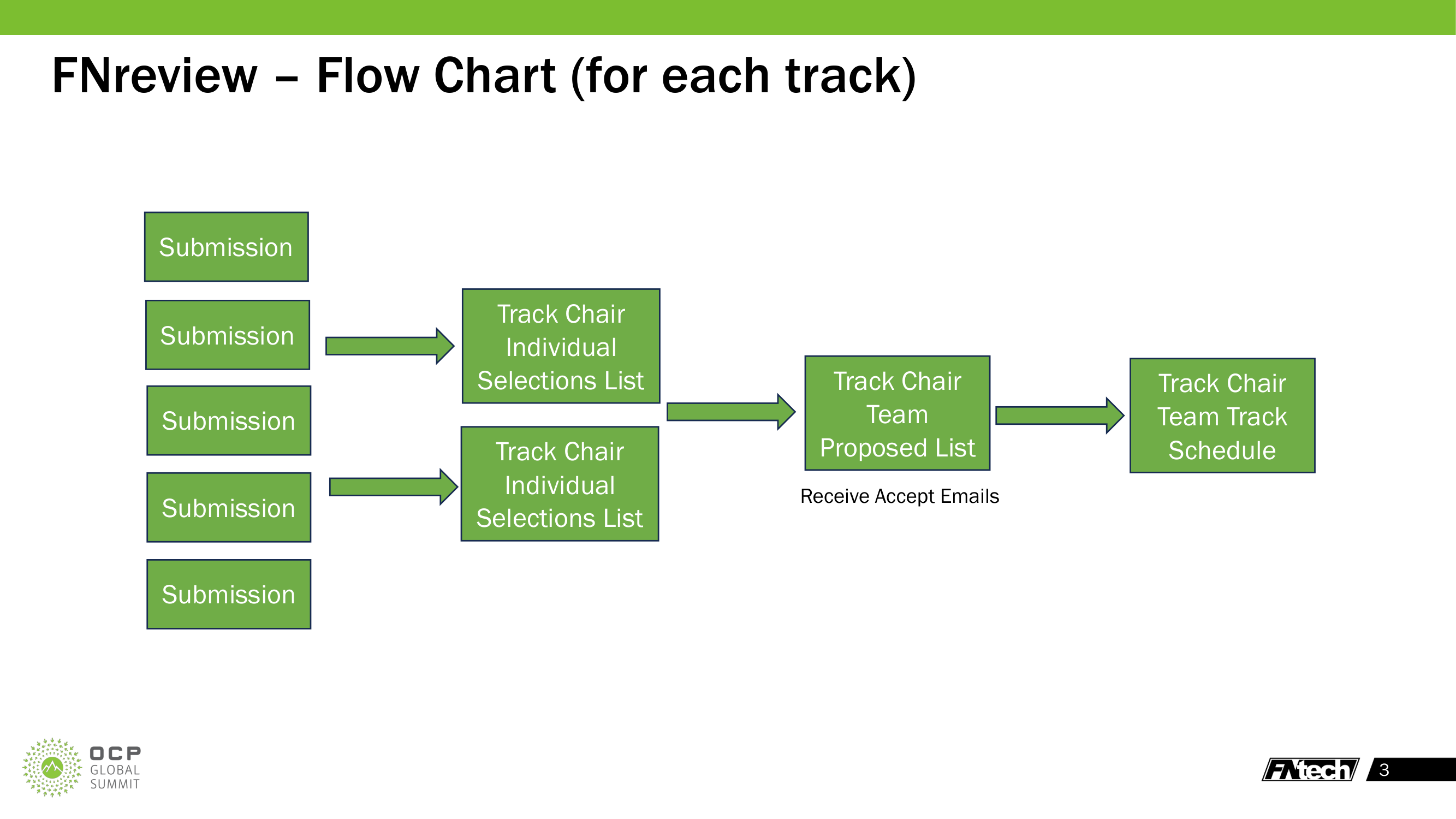
Submissions
  → Track Chair Individual Selections List (each chair picks independently)
    → Track Chair Team Proposed List (chairs collaborate to merge selections)
      → Track Chair Team Track Schedule (drag-and-drop into time slots)
        → Lock for Review → Admin approval → Accept/Reject emails sent
Each track chair reviews submissions independently, then the team collaborates to build a single proposed accepted list that becomes the track schedule.
Getting Started
Login
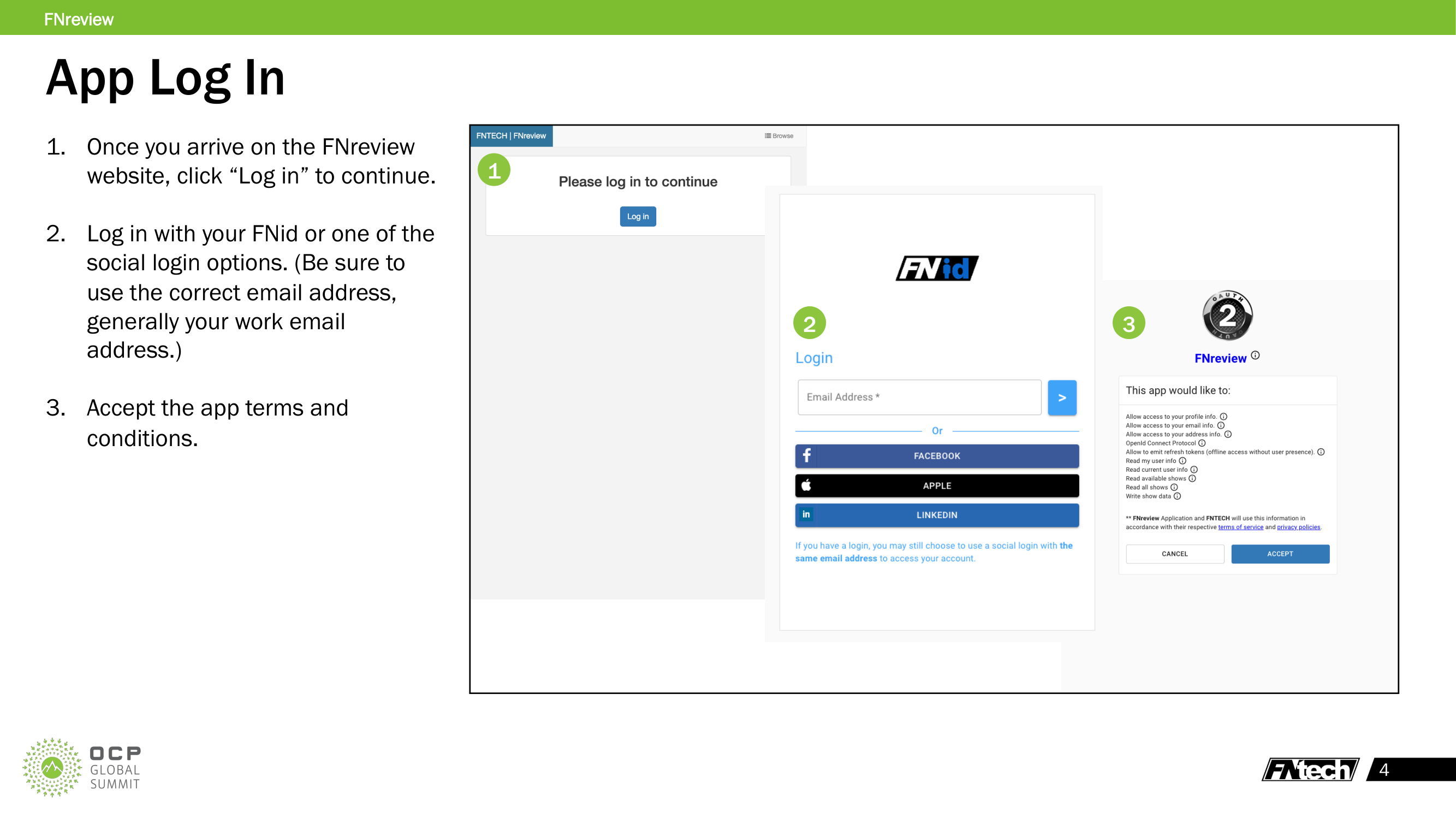
- Navigate to the FNreview website
- Click "Log in" to continue
- Authenticate with FNid (email) or social login (Facebook, Apple, LinkedIn)
- Use your work email address — this determines your track chair permissions
- Accept the app's OIDC consent (profile, email, address, show data access)
Choose Selection Plan
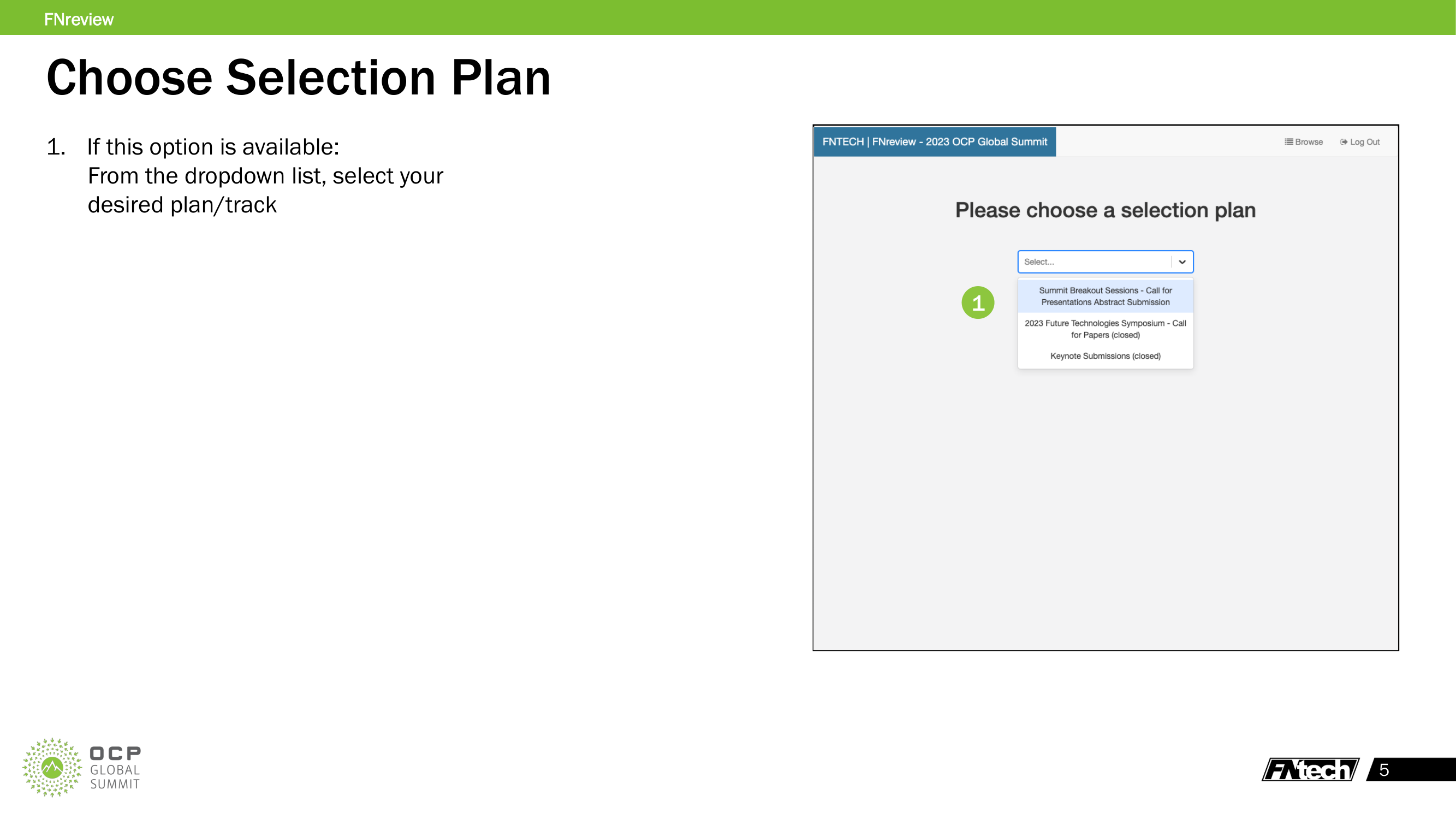
If multiple selection plans exist for the summit, select the appropriate one from the dropdown. Closed plans will be marked "(closed)" in the list. Each selection plan may have different tracks, scoring rubrics, and review periods.
Browse Tab
The Browse tab is where track chairs review individual submissions and cast their votes.
Layout
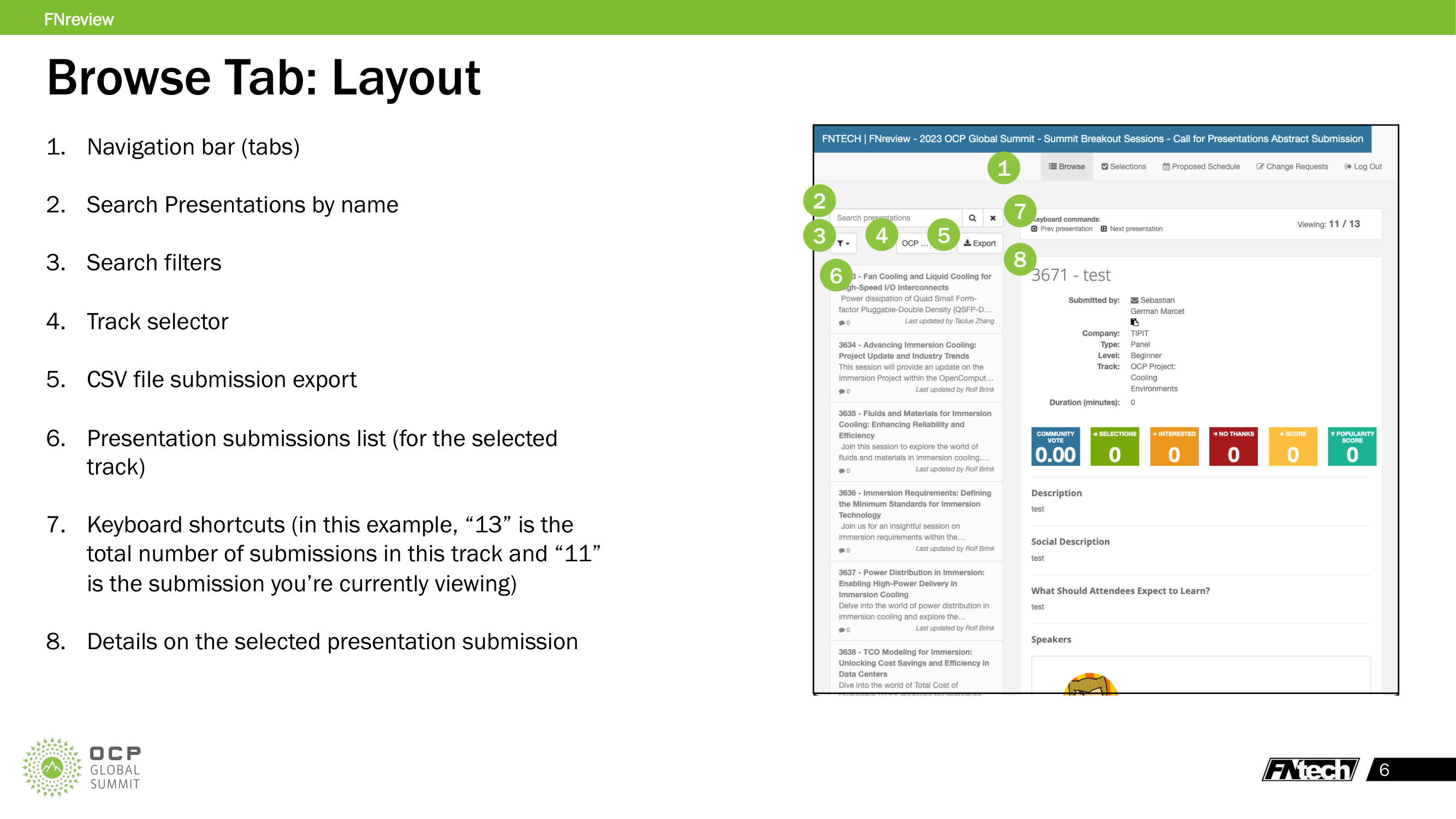
The Browse view has a split-panel layout:
- Left panel: Submission list for the selected track
- Right panel: Details of the currently selected submission
Top bar elements: - Navigation tabs: Browse, Selections, Proposed Schedule, Change Requests - Search bar: search presentations by name - Track selector: filter by track (dropdown) - CSV export button - Keyboard shortcuts indicator showing viewing position (e.g., "Viewing: 11 / 13")
Selecting a Track
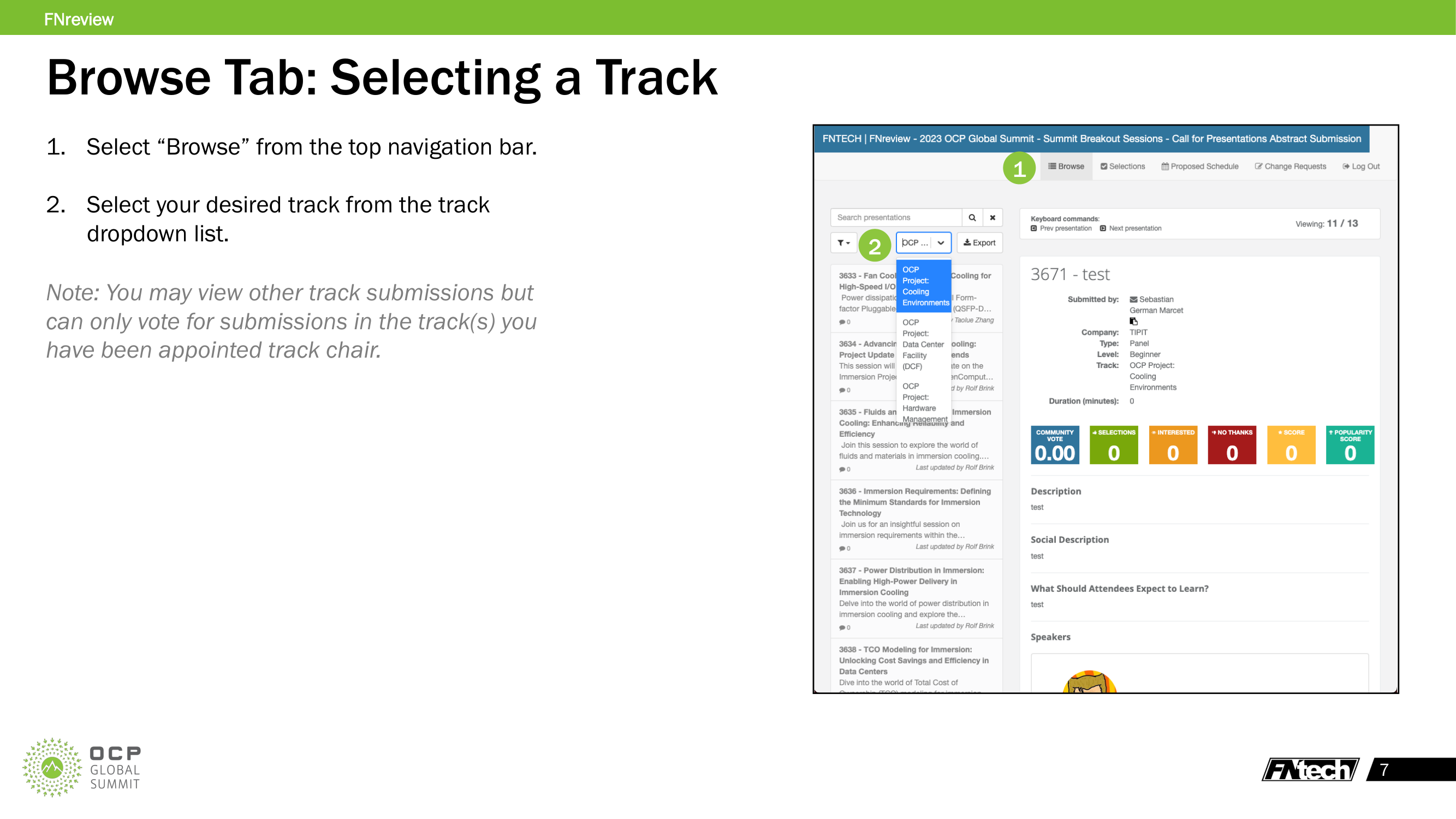
- Select "Browse" from the top navigation bar
- Select your desired track from the track dropdown
Note: You may view other track submissions but can only vote for submissions in the track(s) you have been appointed track chair for.
Viewing a Submission
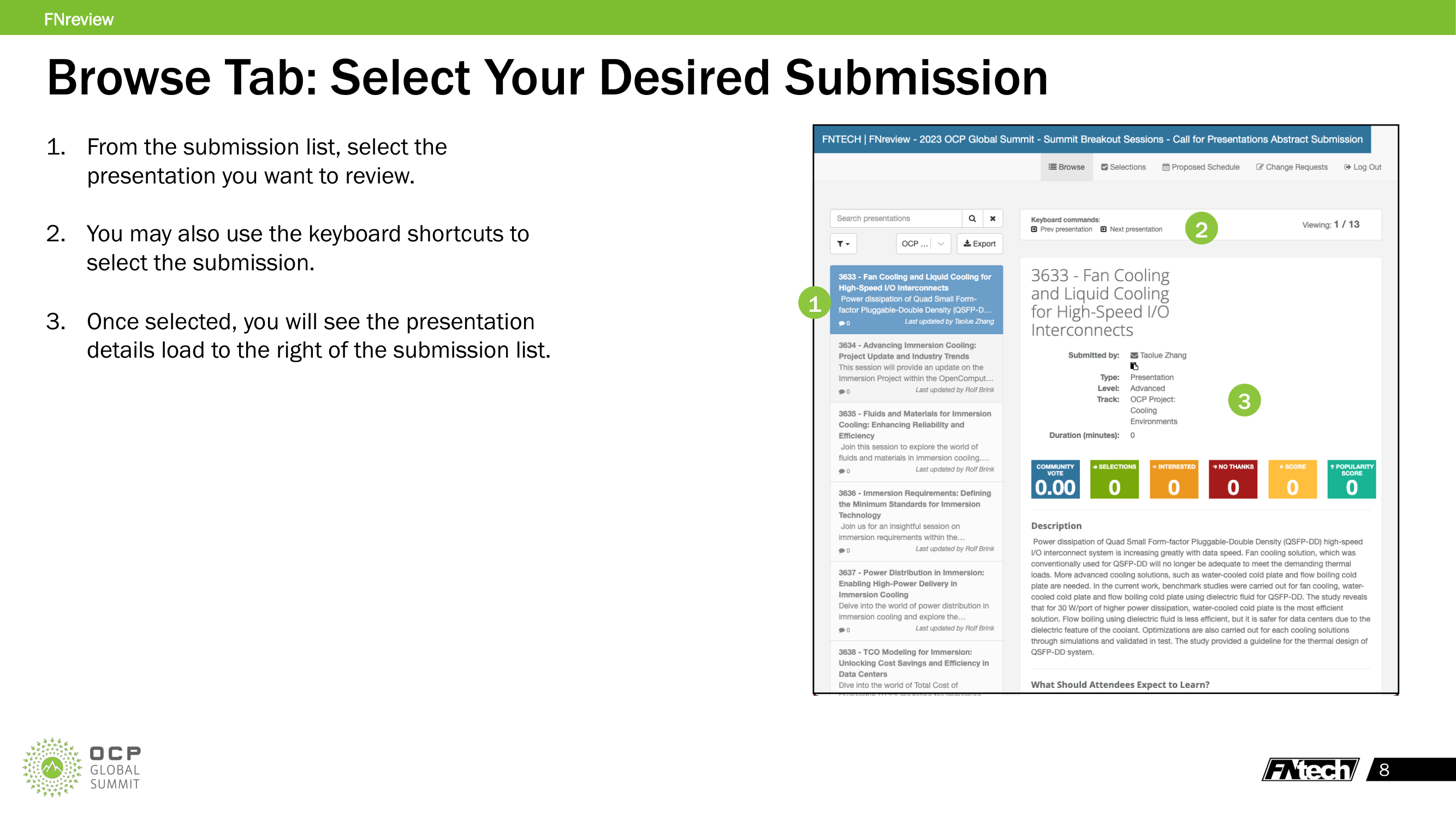
- Click a submission in the left panel list to load its details on the right
- Use keyboard shortcuts (Prev/Next) to navigate between submissions
- The viewing counter (top right) shows your position (e.g., "1 / 13")
Submission Detail Layout (top of page)
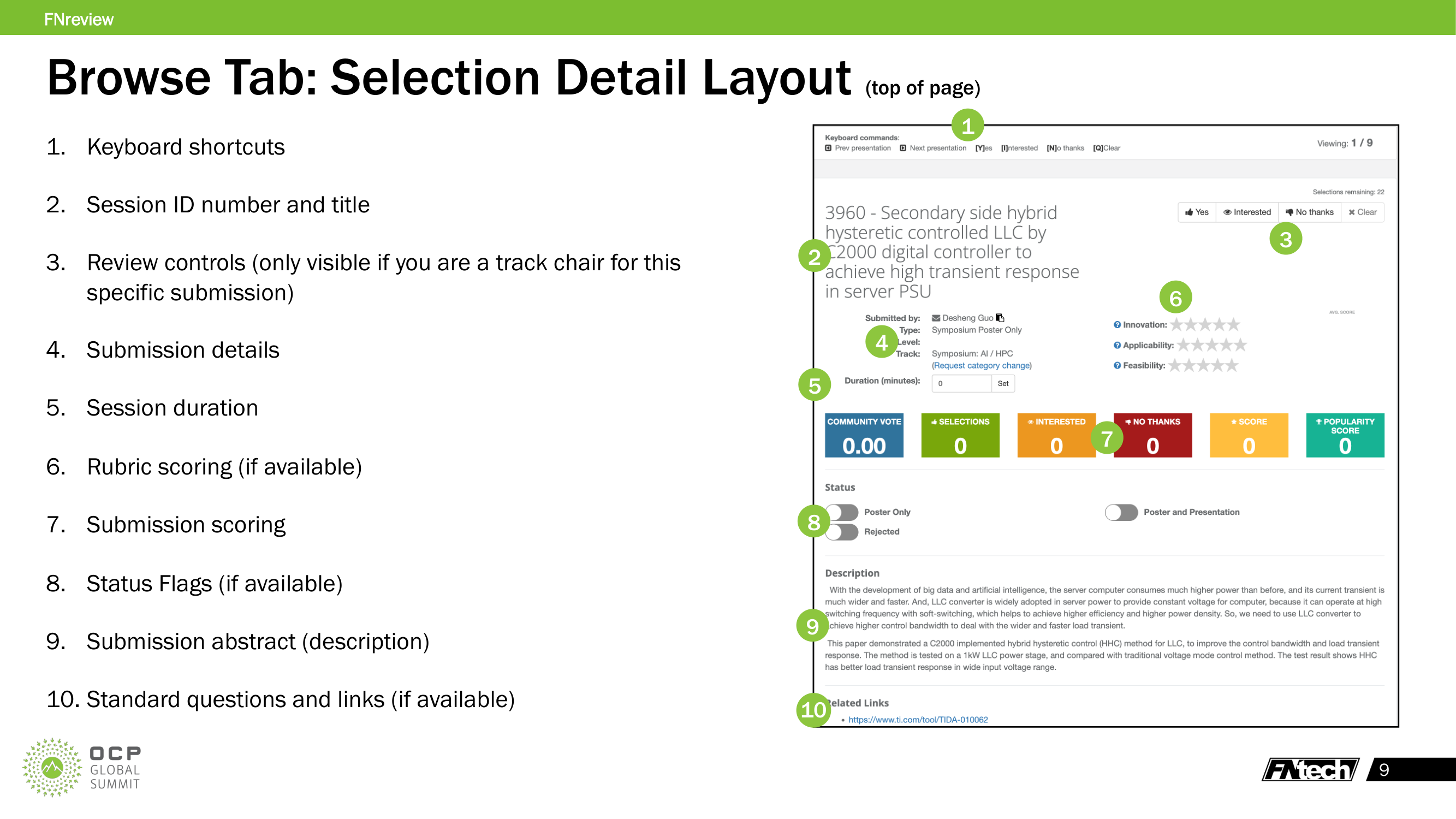
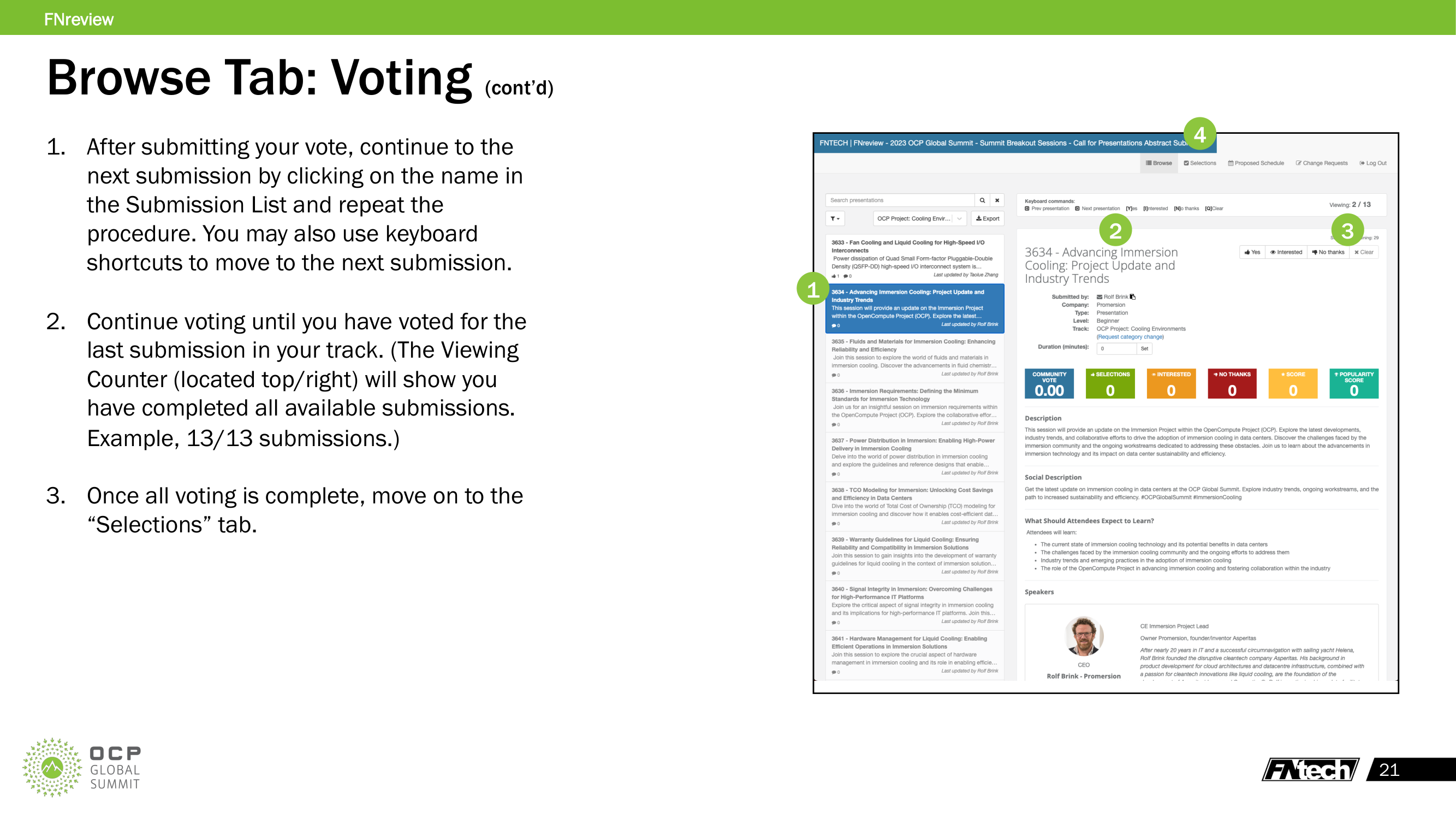
- Keyboard shortcuts — Prev/Next presentation, vote shortcuts ([Y]es, [I]nterested, [N]o thanks, [Q]Clear)
- Session ID and title — unique submission identifier
- Review controls — Yes / Interested / No thanks / Clear buttons (only visible if you are a track chair for this submission)
- Submission details — Submitted by, Company, Type, Level, Track, with "(Request category change)" link
- Session duration — editable duration field (minutes) with Set button
- Rubric scoring — star ratings per criterion (if enabled for this selection plan)
- Score counters — Community Vote, Selections, Interested, No Thanks, Score, Popularity Score
- Status flags — organizational toggles (Poster Only, Poster and Presentation, Rejected, etc.)
- Description — submission abstract
- Standard questions and links — extra questions, related links (if available)
Submission Detail Layout (bottom of page)
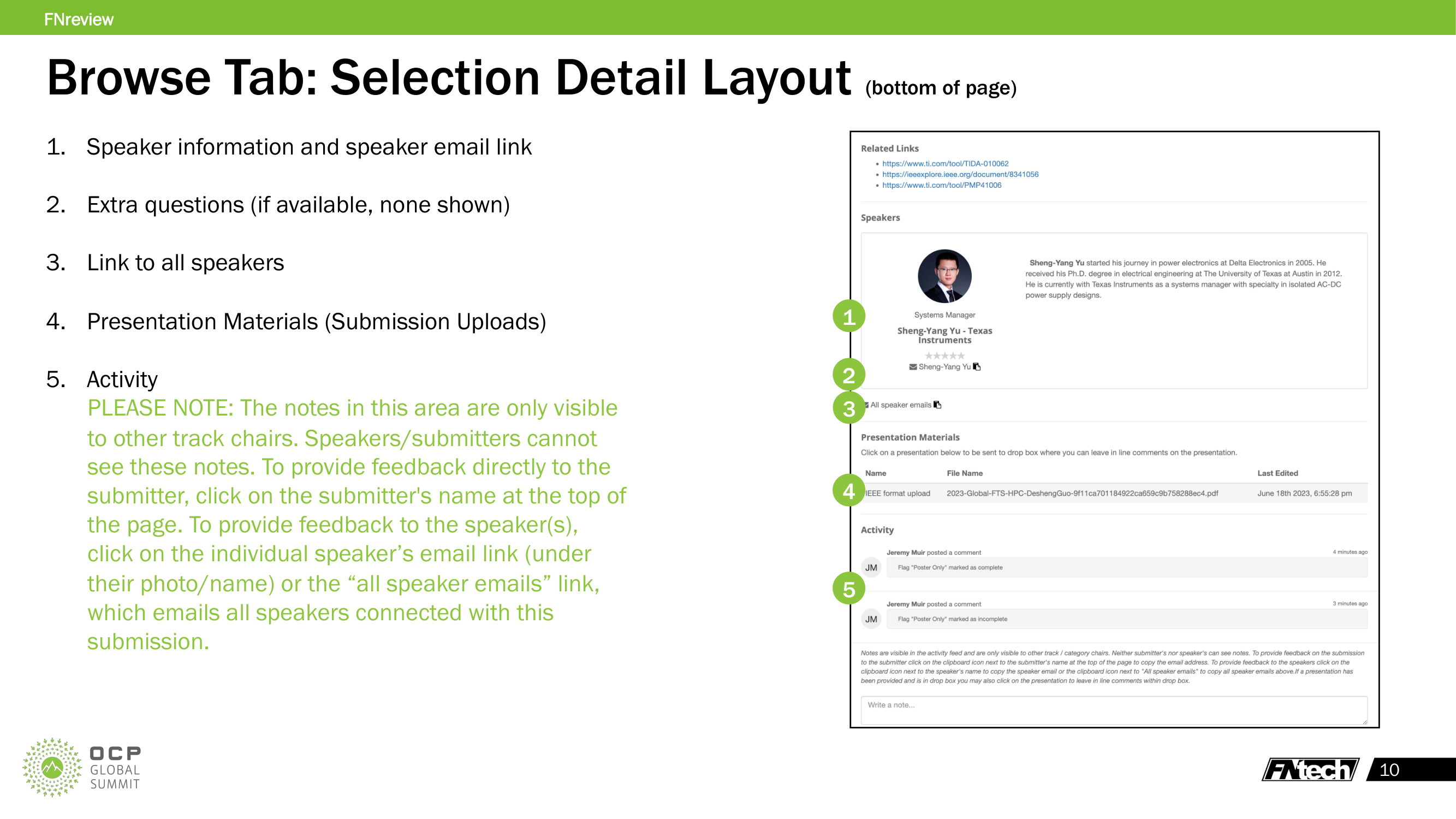
- Speaker information — photo, bio, title, company, email link (clipboard icon)
- Extra questions — if configured for this selection plan
- "All speaker emails" link — copies all speaker email addresses
- Presentation Materials — uploaded files (name, filename, last edited date). Click to open in Dropbox for review and commenting
- Activity feed — track-chair-only notes and status change history
Important: Activity feed notes are only visible to other track/category chairs. Submitters and speakers cannot see these notes. To contact the submitter, click the clipboard icon next to their name. To contact speakers, use the email links under their profiles or the "All speaker emails" link.
Presentation Materials & Dropbox
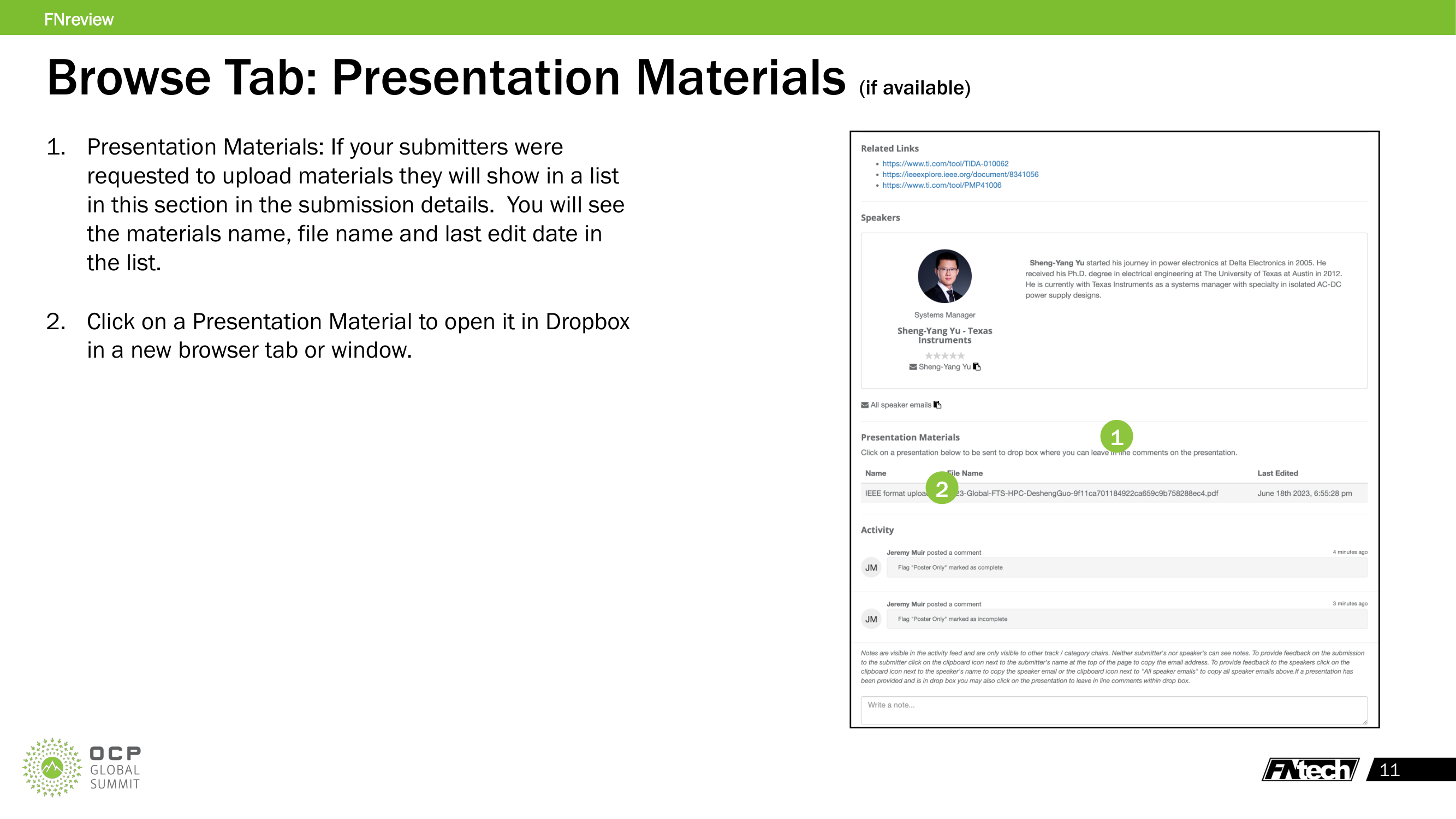
If submitters uploaded materials, they appear in the Presentation Materials section:
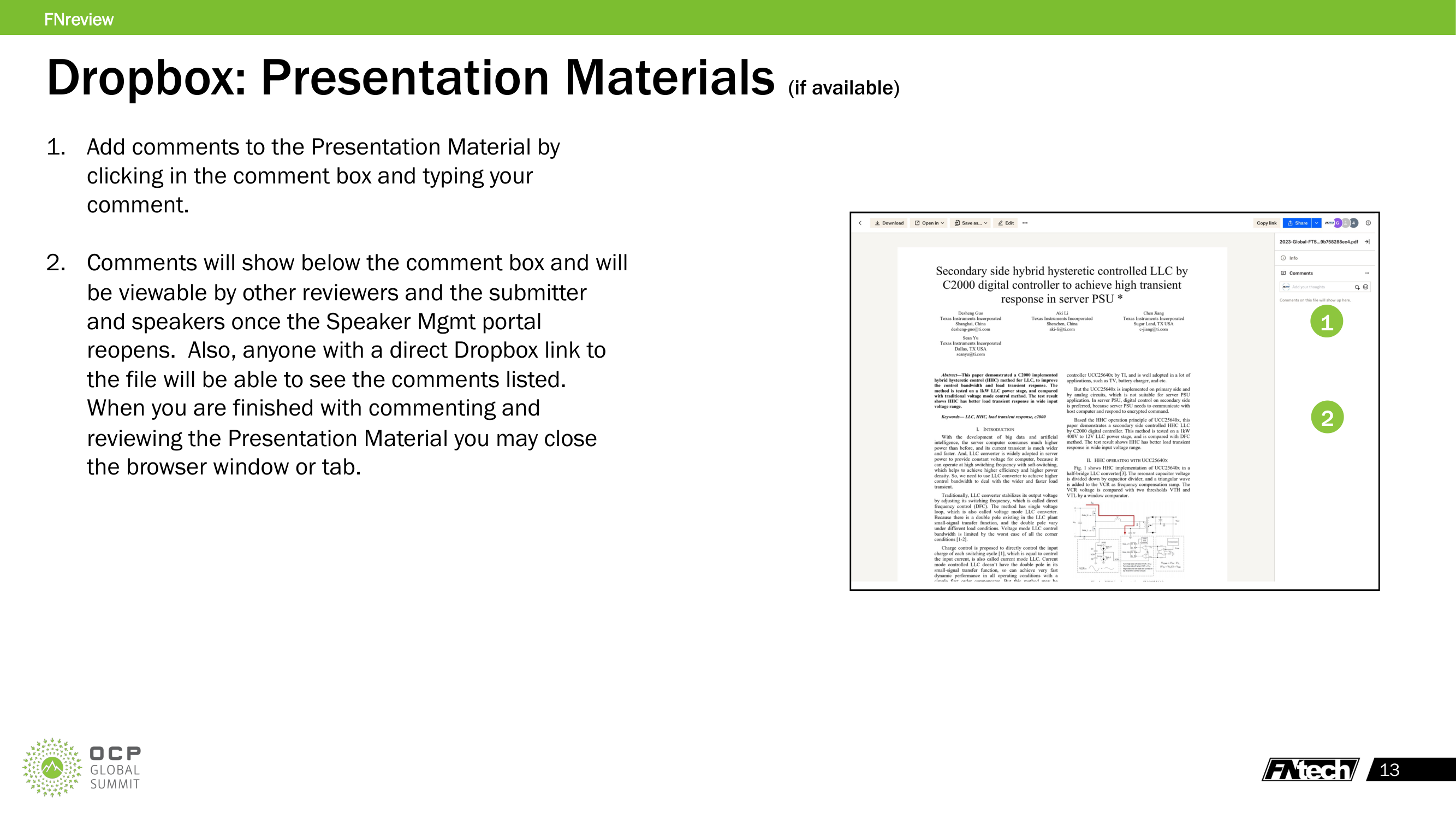
- Click a presentation material to open it in Dropbox in a new browser tab/window
- Use the "Comments" icon on the right side of the Dropbox viewer to add comments
- Comments are visible to the submitter and speakers when the Speaker Management portal reopens after the review cycle
Rubric Scoring
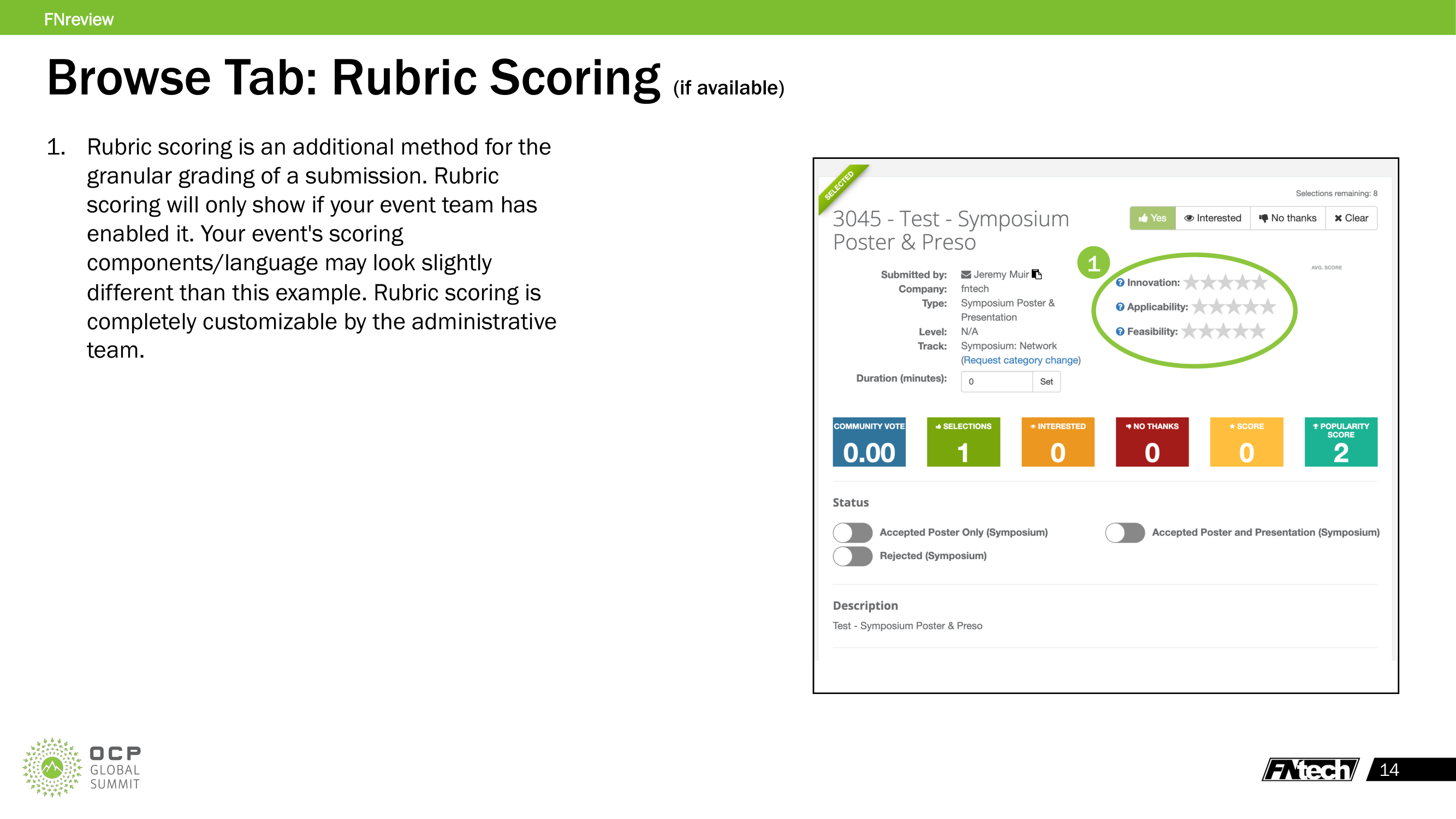
Rubric scoring provides granular grading beyond the simple Yes/Interested/No Thanks vote. Rubric scoring is optional — it only appears if the event admin has enabled it for the selection plan.
How rubric scoring works:
- Each rubric criterion (e.g., Innovation, Applicability, Feasibility) has a star rating (1-5)
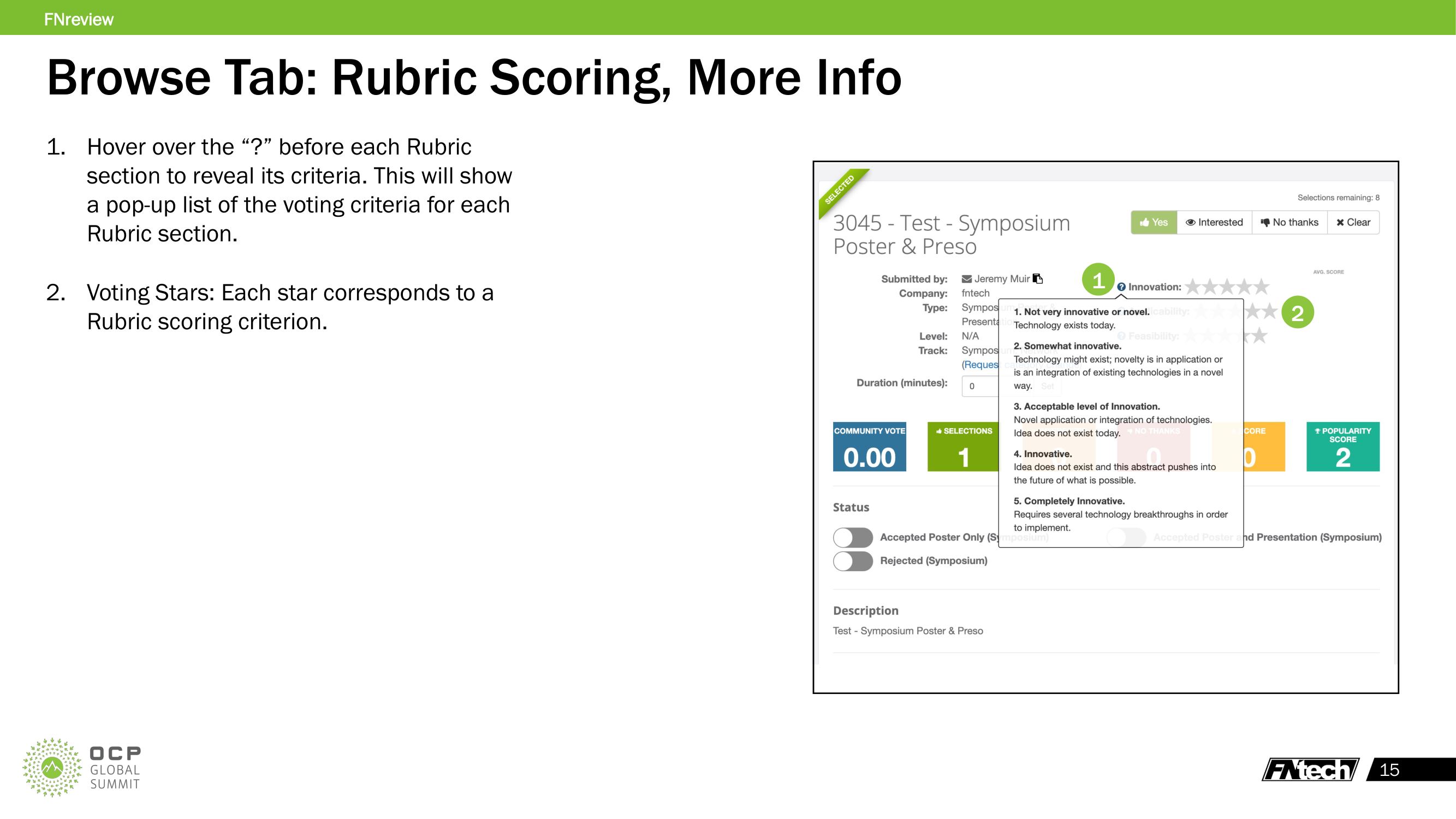
- Hover over the "?" icon next to each criterion name to see the detailed rating descriptions
- Each star level has a specific definition (e.g., "1. Not very innovative or novel" through "5. Completely Innovative")
- Click a star to vote; stars turn yellow to confirm
- An average score across all reviewers appears next to your score
- Click the "x Clear" button next to a criterion to remove your score
- A cumulative star score reflecting all criteria from all reviewers shows at the bottom
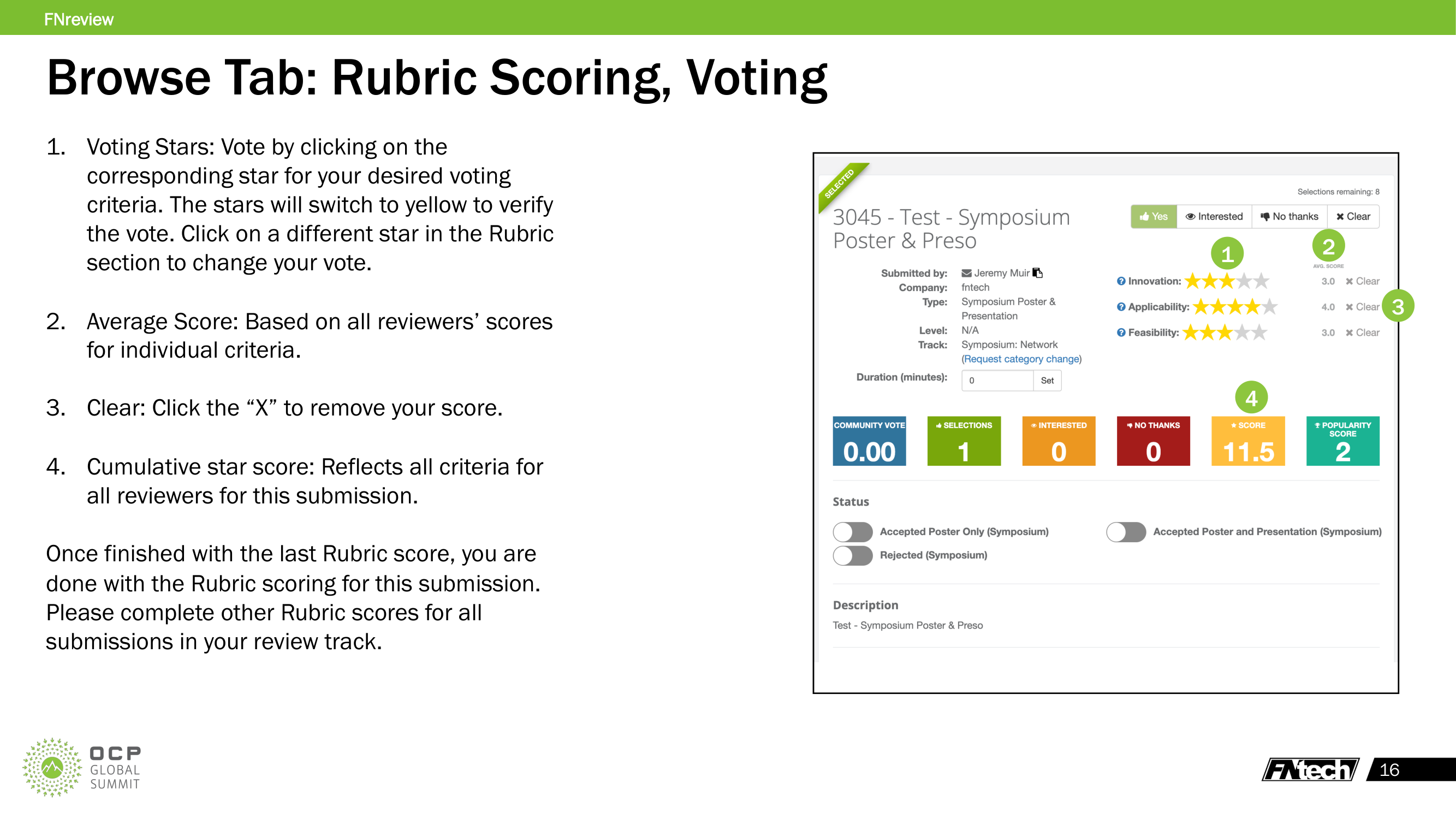
The rubric criteria names, descriptions, and star definitions are fully customizable by the event admin team per selection plan.
Voting
Track chairs vote on each submission using three options:
Yes (thumbs up):
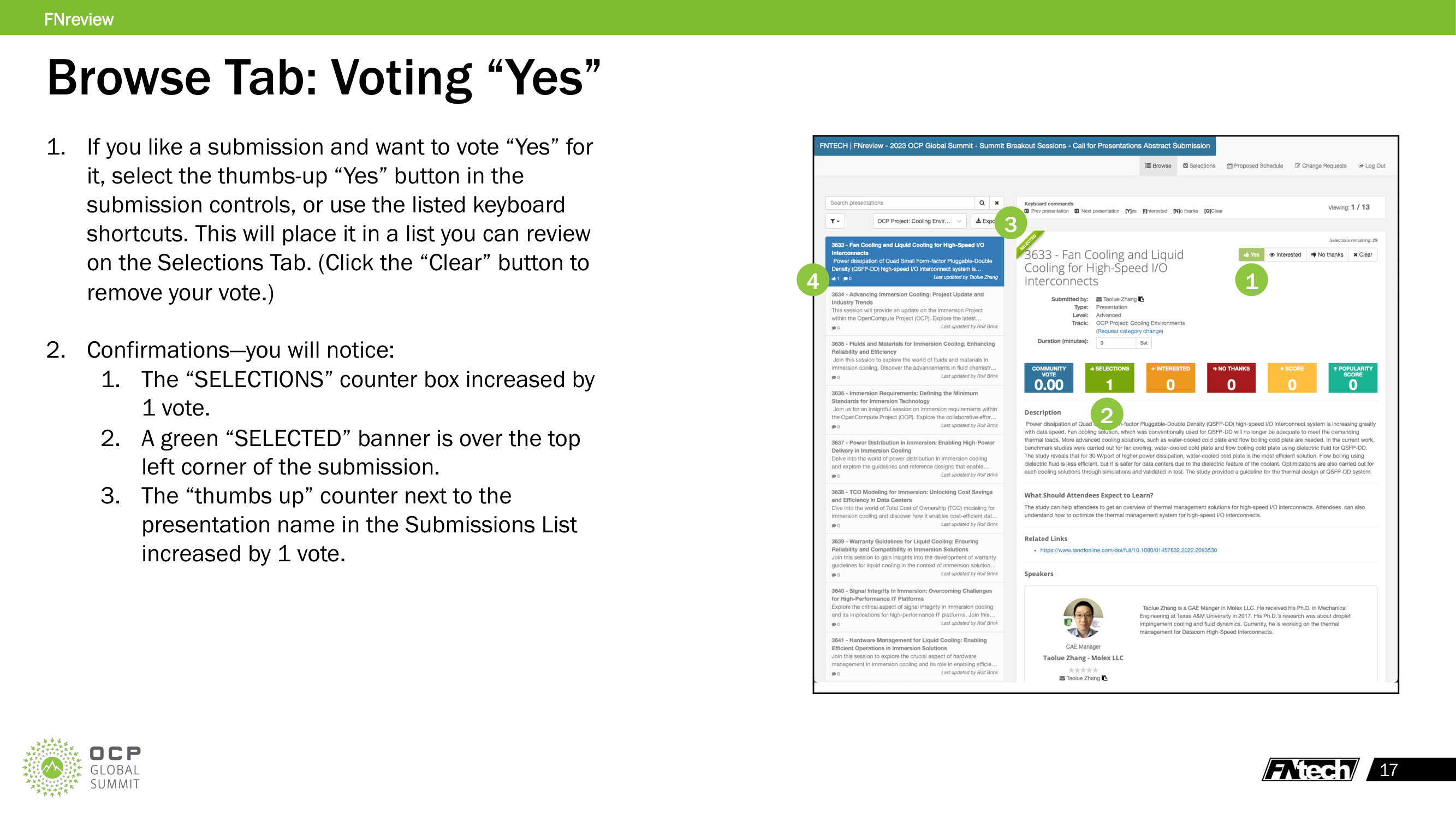
- Select "Yes" button or press [Y] keyboard shortcut
- The submission is added to your Selections list on the Selections tab
- Confirmations: SELECTIONS counter increases by 1, green "SELECTED" banner appears, thumbs-up icon appears in submission list
Interested (eye icon):
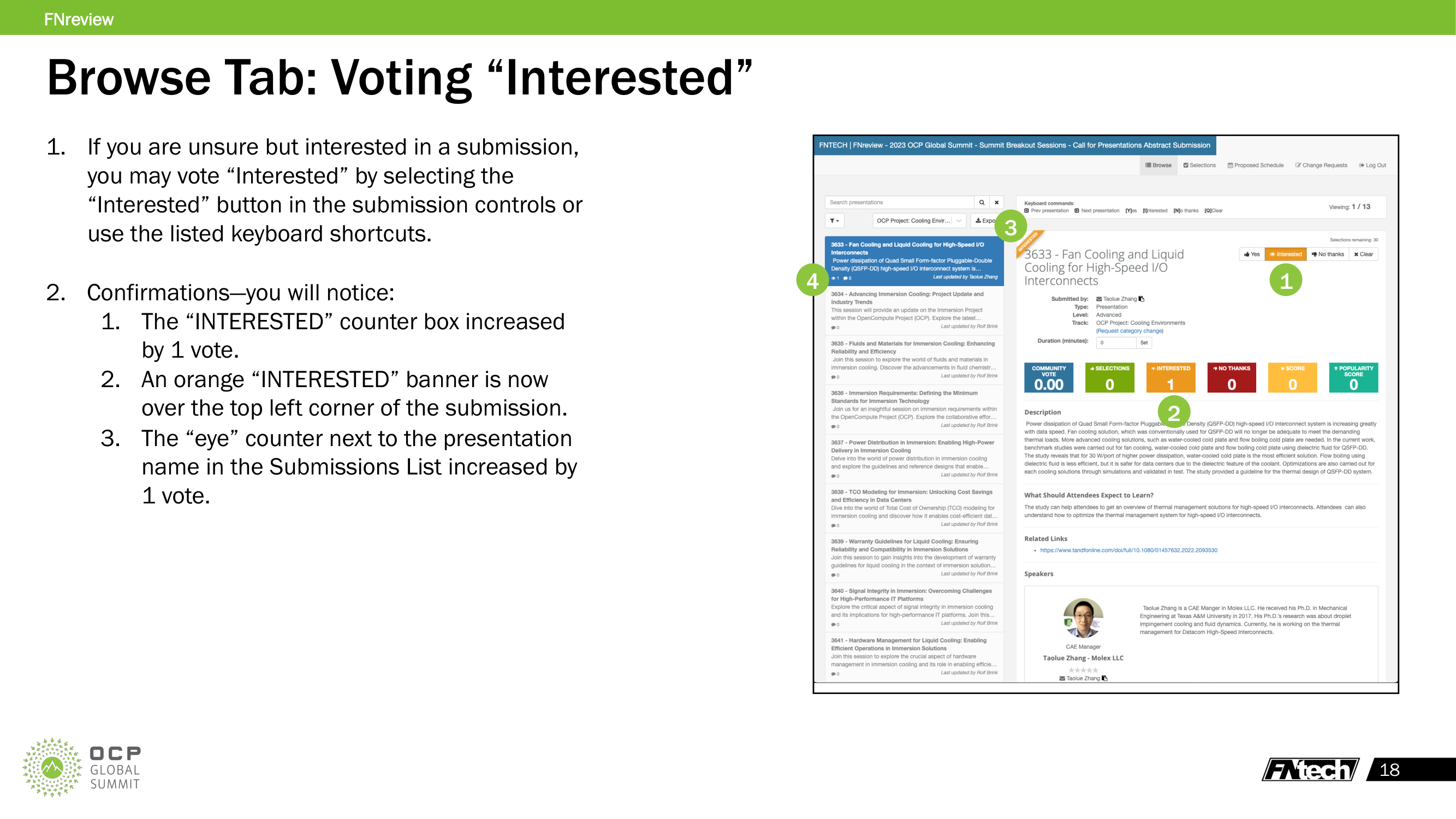
- Select "Interested" button or press [I]
- The submission is marked as a "maybe" for later review
- Confirmations: INTERESTED counter increases by 1, orange "INTERESTED" banner appears, eye icon appears in submission list
No Thanks (thumbs down):
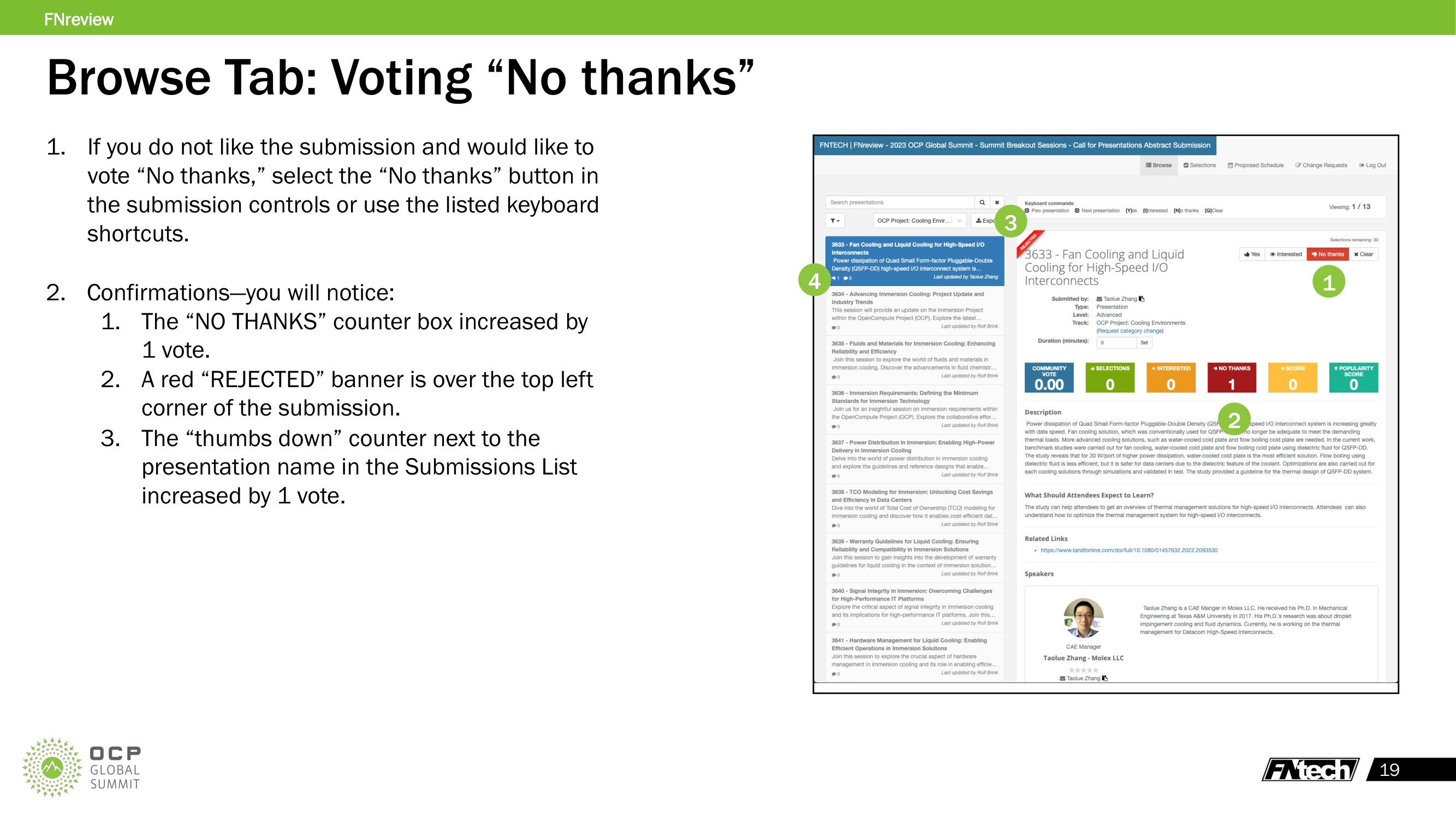
- Select "No thanks" button or press [N]
- The submission is marked as rejected by this reviewer
- Confirmations: NO THANKS counter increases by 1, red "REJECTED" banner appears, thumbs-down icon appears in submission list
Clear: - Click "Clear" button or press [Q] to remove your vote - Resets the submission to unvoted state
After each vote, continue to the next submission in the list or use keyboard shortcuts. The viewing counter tracks progress through all submissions in the track.
Status Flags
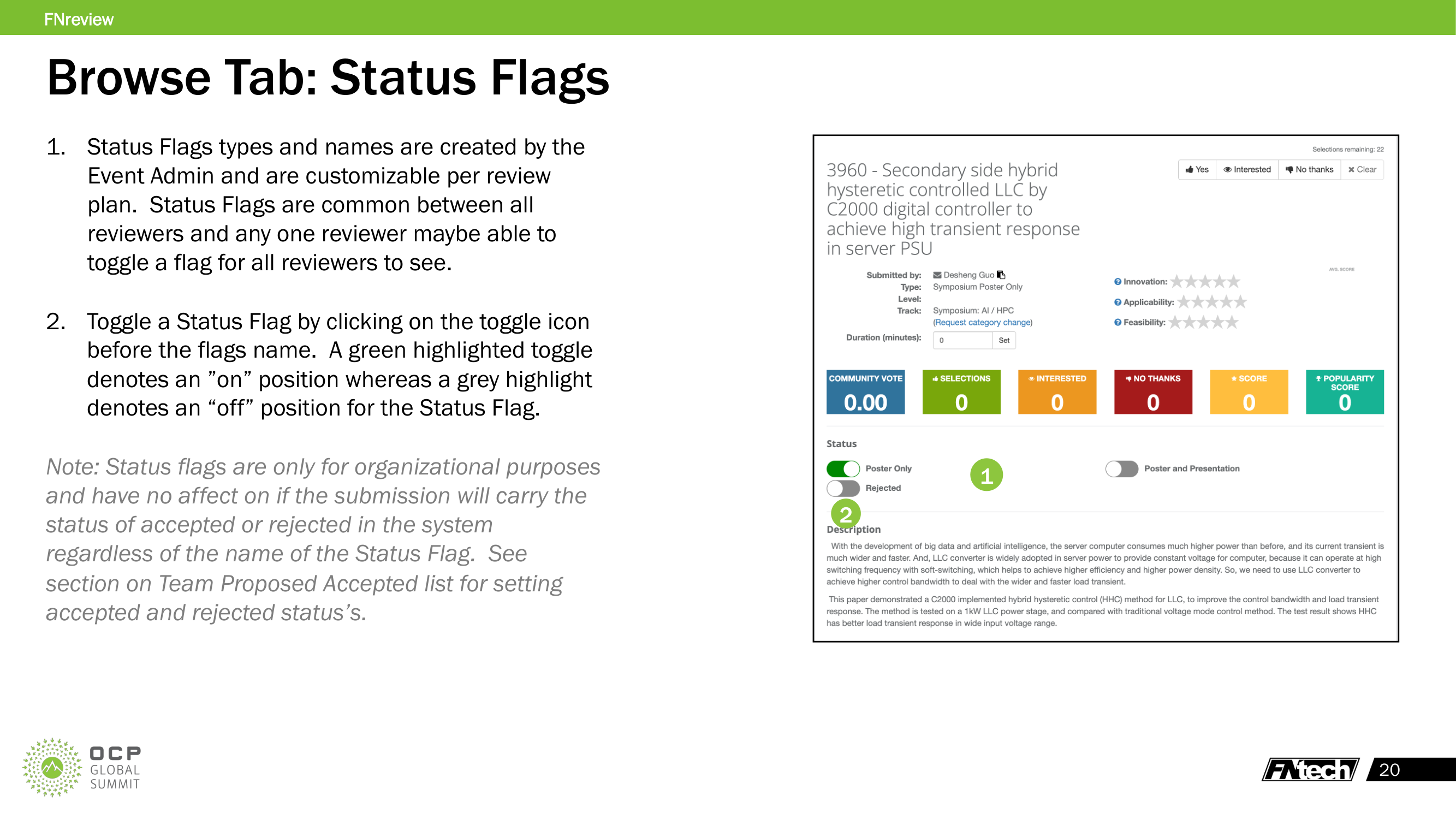
Status flags are organizational labels shared between all track chairs:
- Flag types and names are created by the Event Admin and are customizable per selection plan
- Any track chair can toggle a flag on or off for any submission
- Green toggle = "on," grey toggle = "off"
- Status flags are for organization only — they do not affect whether a submission is accepted or rejected. Only placement in the Team Proposed Accepted list determines acceptance.
Request Category Change
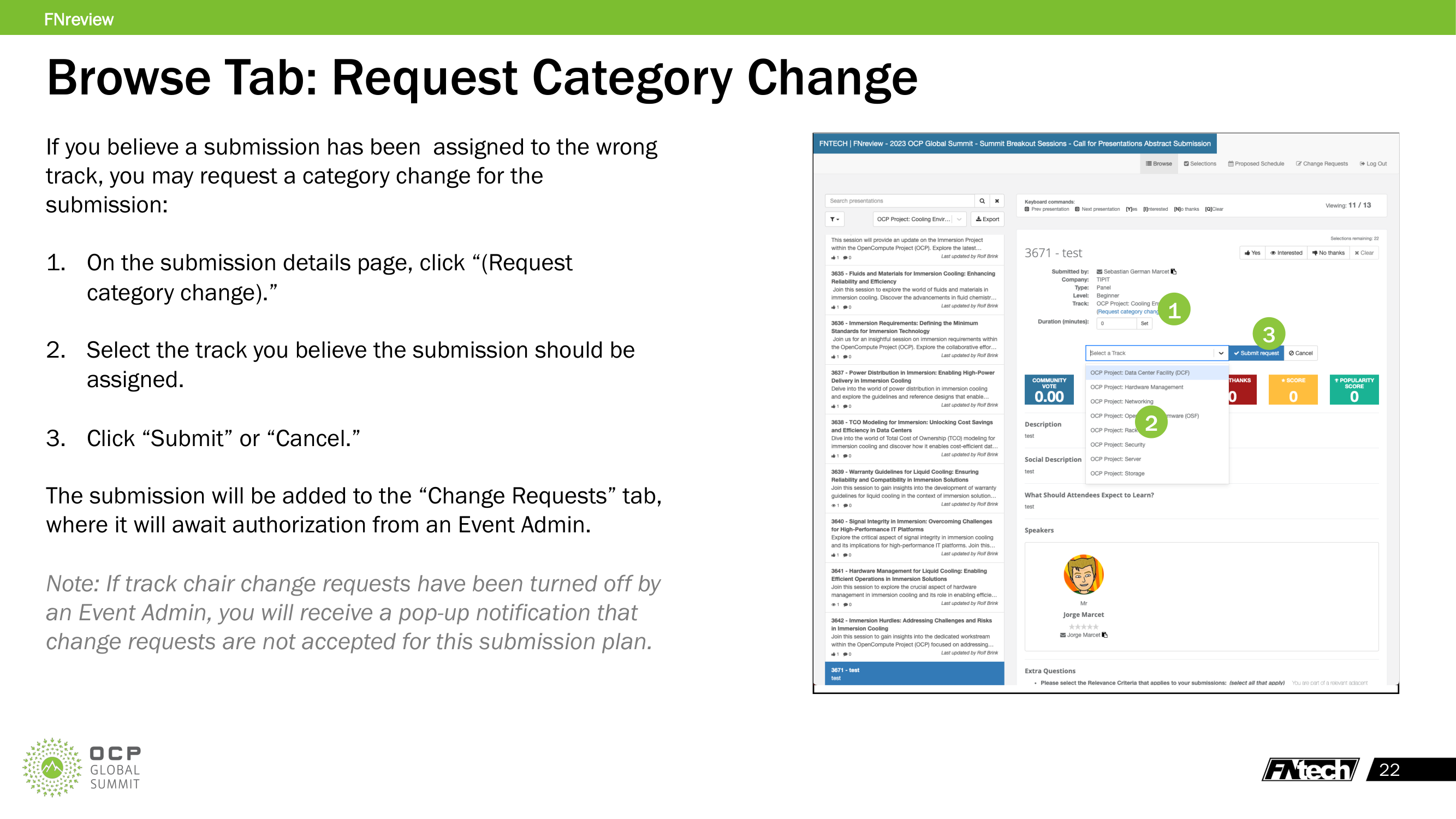
If a submission appears to be in the wrong track:
- On the submission detail page, click "(Request category change)"
- Select the correct track from the dropdown
- Click "Submit" or "Cancel"
The request appears on the "Change Requests" tab for the event admin to approve or reject. If track chair change requests have been disabled by the admin, a popup notification will appear.
Selections Tab
The Selections tab is where track chairs organize their individual picks and collaborate on the team's proposed accepted list.
Layout
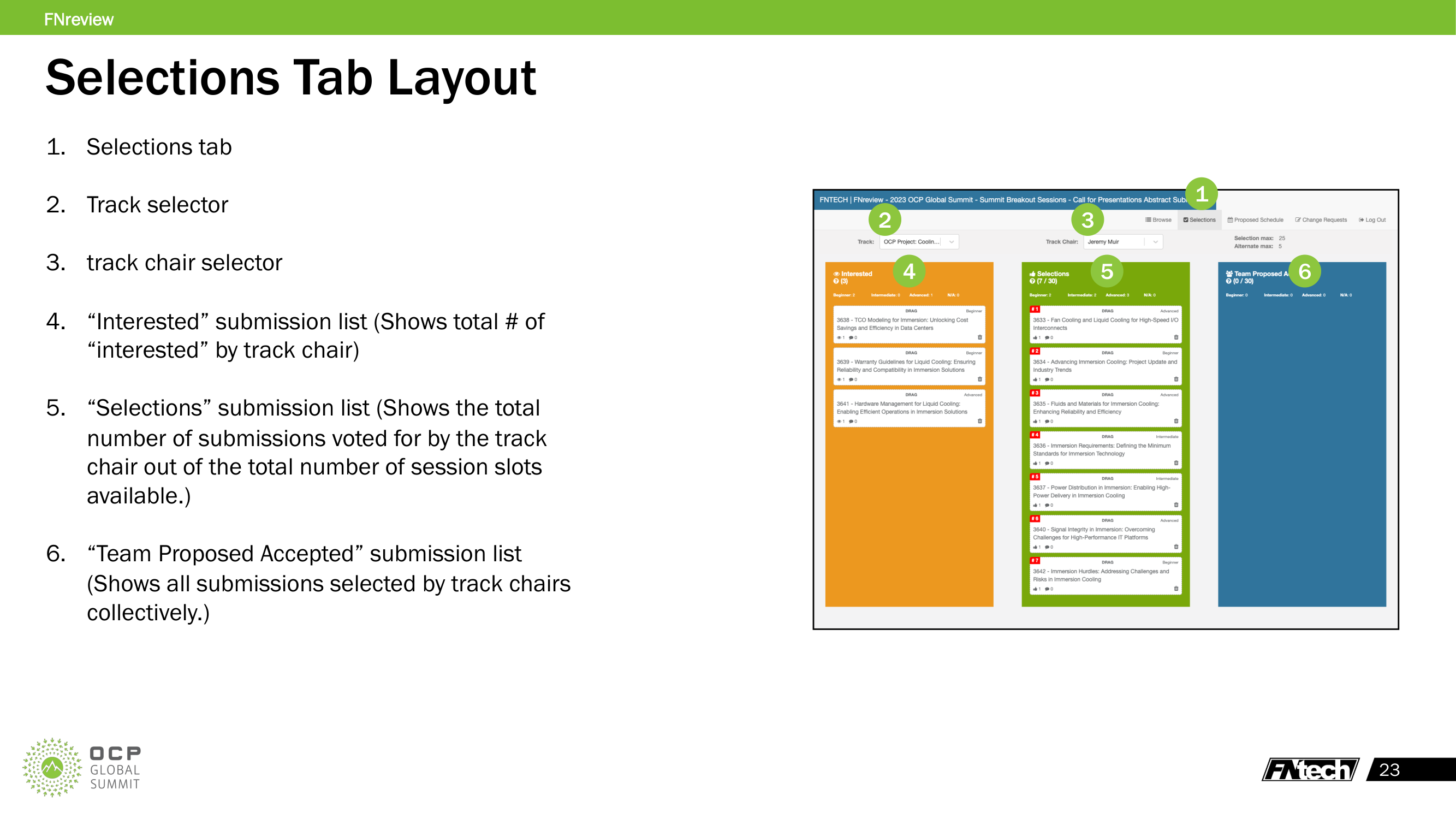
The Selections tab has three columns:
- Interested — submissions you marked as "Interested" (orange header, shows count)
- Selections — submissions you voted "Yes" on (green header, shows count out of total slots)
- Team Proposed Accepted — the collaborative list all track chairs build together (blue header, shows count out of total slots)
Each column can be filtered by submission level tabs: Beginner, Intermediate, Advanced, N/A.
Track and Chair Selection
- Track selector — choose which track to view
- Track chair selector — choose which track chair's individual selections to view (or your own)
- Selection max / Alternate max — shown in top right, indicates available session slots and alternate slots
Reviewing Individual Selections
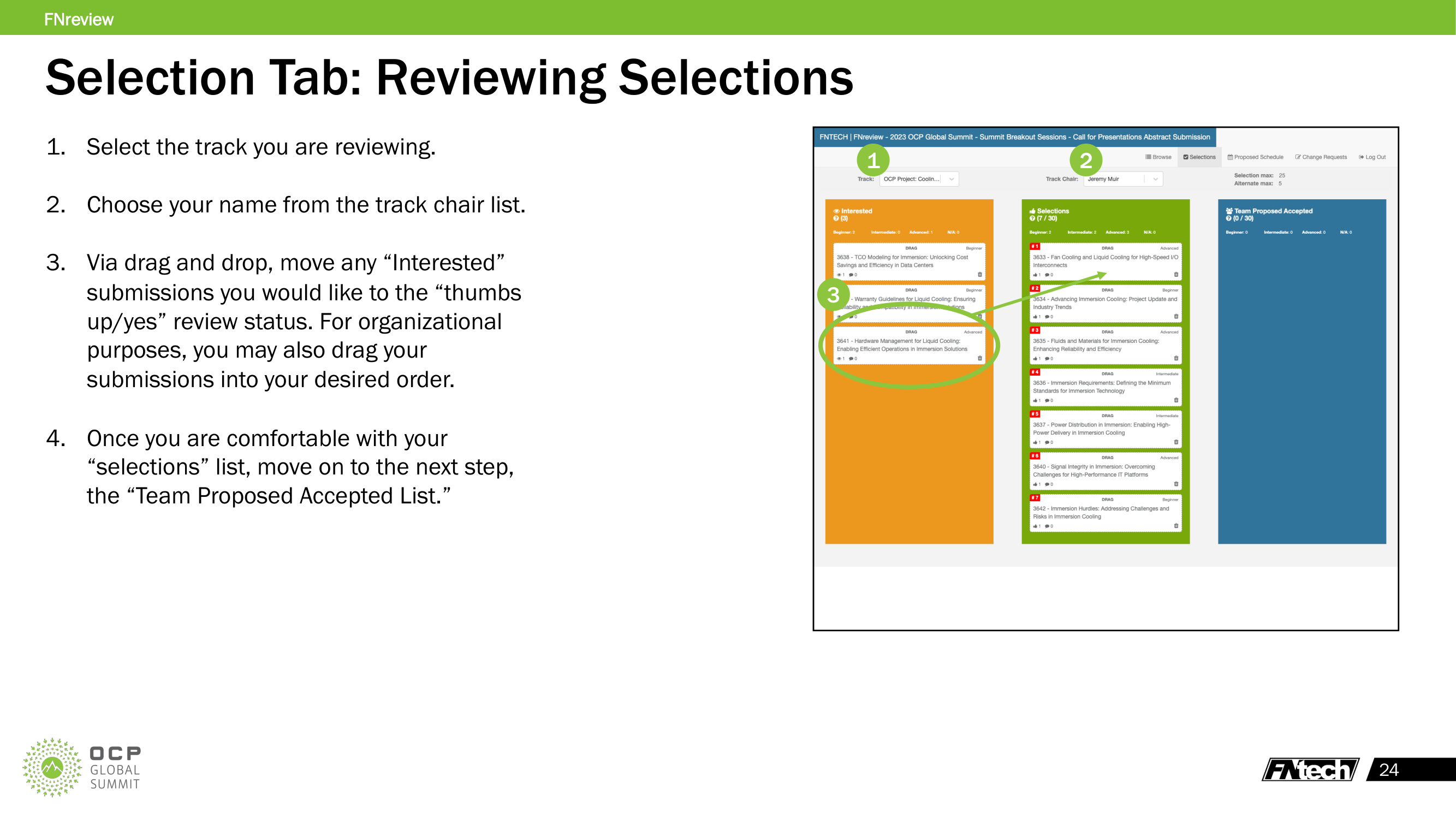
- Select the track you are reviewing
- Choose your name from the track chair selector
- Via drag-and-drop, move "Interested" submissions you want to promote into the "Selections" (Yes) column
- Reorder submissions in your Selections list by priority
Building the Team Proposed Accepted List
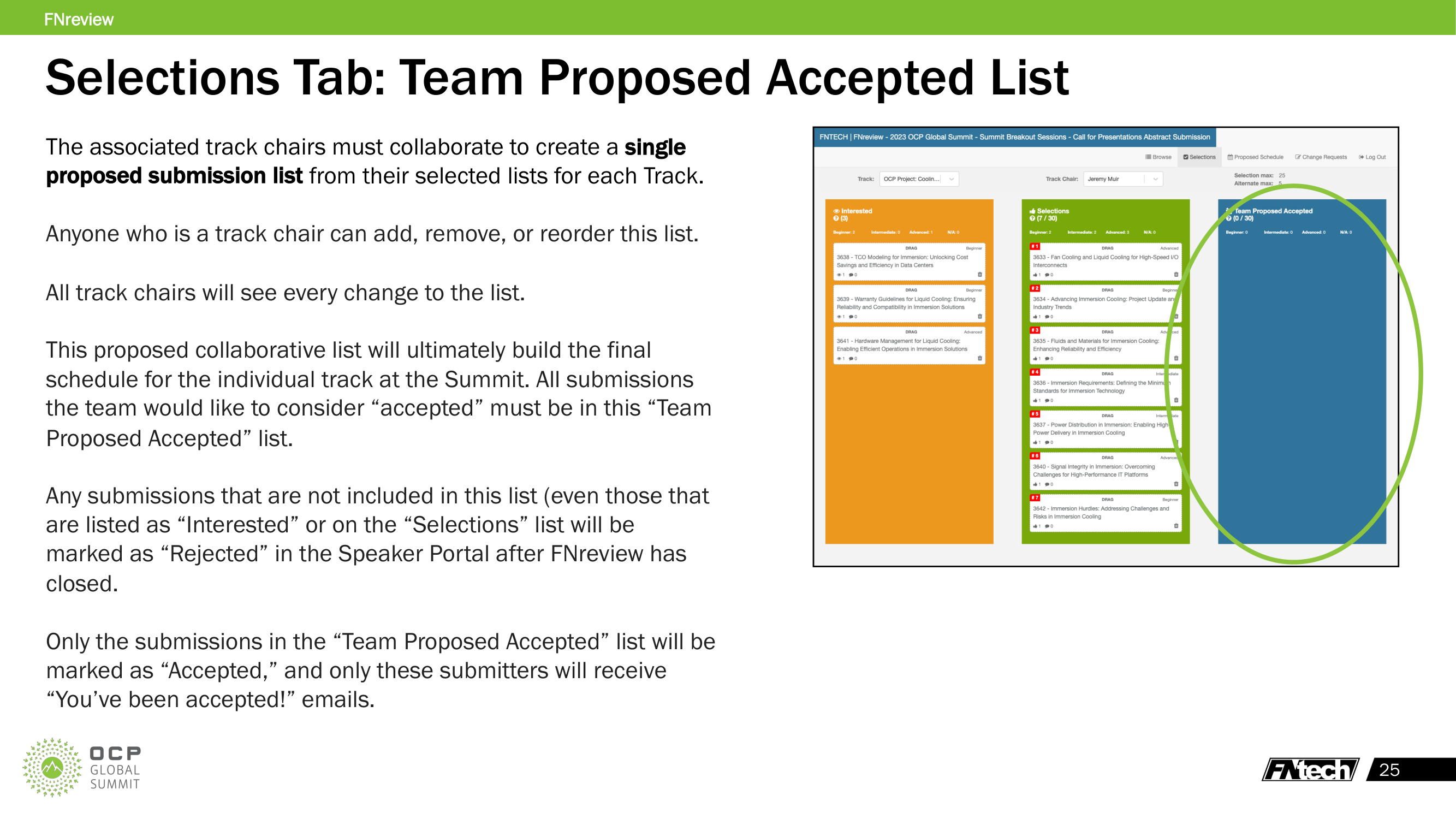
The Team Proposed Accepted list is the single most important output of the review process. This is the collaborative list that determines which submissions are accepted.
Key rules: - Any track chair for the track can add, remove, or reorder submissions in this list - All track chairs see every change to this list in real time - The list has a session slot limit set by the event admin (shown in the counter, e.g., "0 / 30") - Drag submissions from the Selections column into the Team Proposed Accepted column - Reorder by dragging to set priority (top = most desirable)
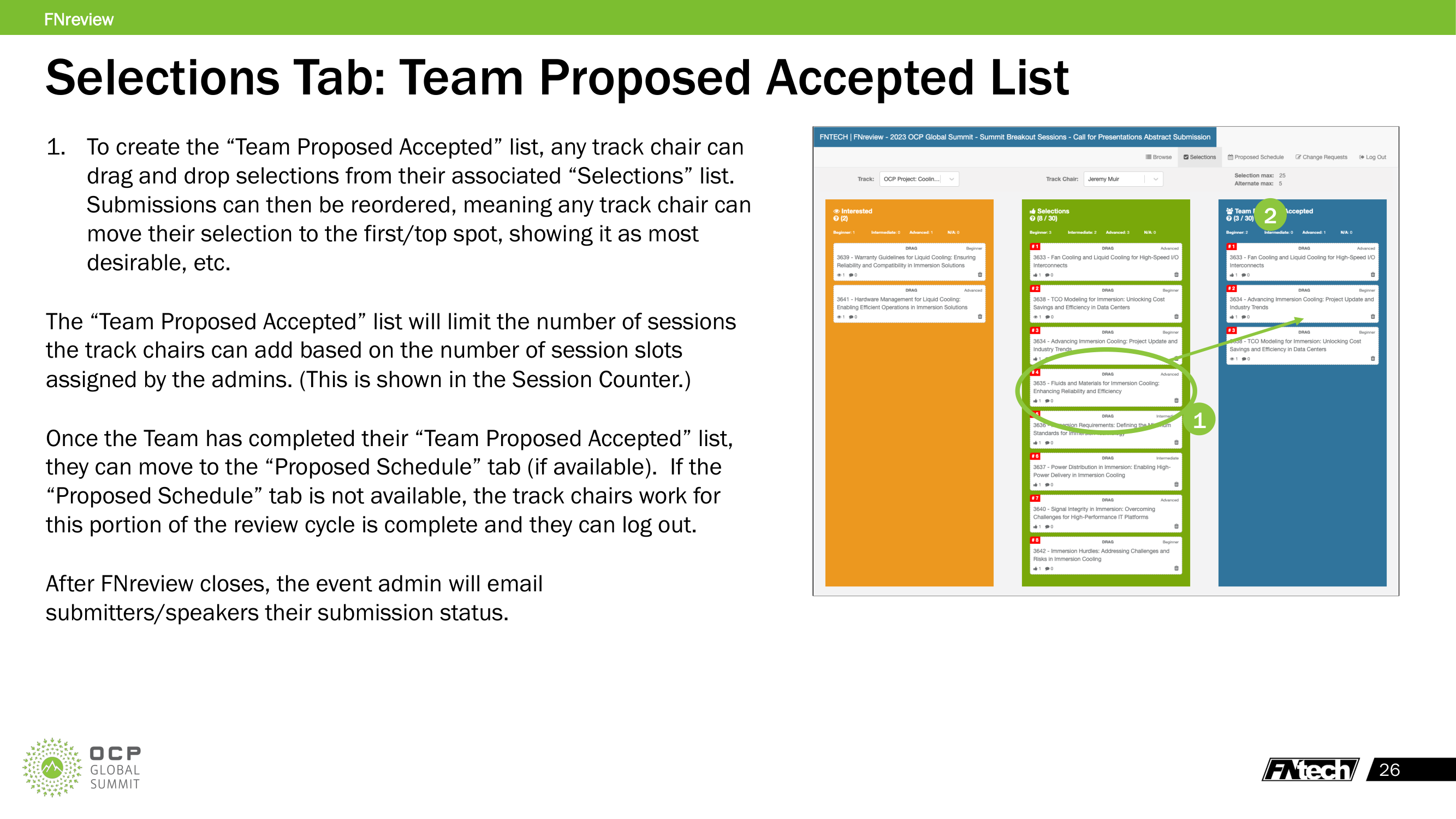
Critical: Only submissions in the Team Proposed Accepted list will be marked "Accepted" and receive acceptance emails. All other submissions — including those in individual Selections or Interested lists — will be marked "Rejected" after FNreview closes.
Proposed Schedule Tab
The Proposed Schedule tab allows track chairs to build a proposed time-slot schedule from their Team Proposed Accepted list. This tab is only available if the selection plan has it enabled.
Layout
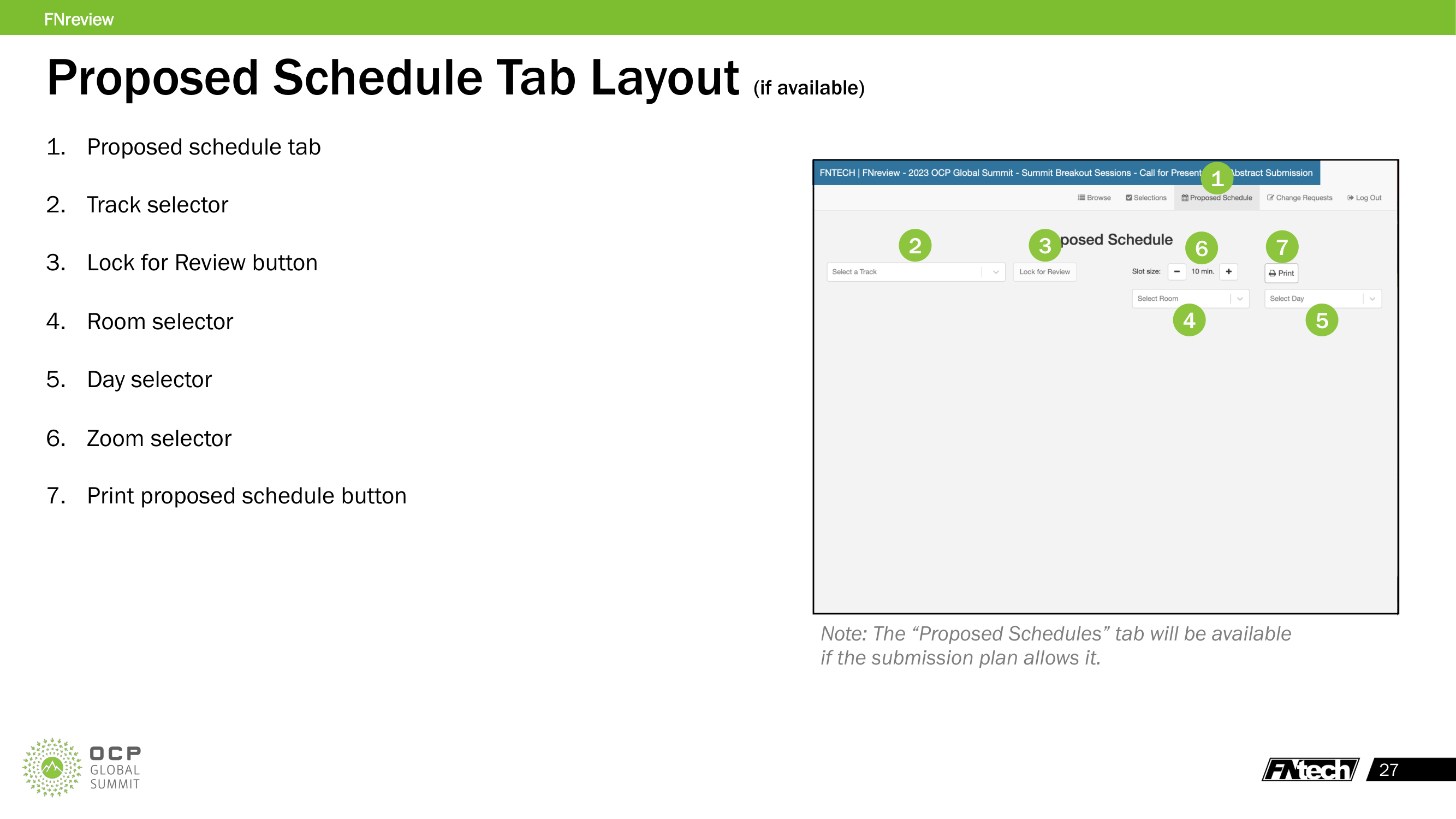
- Track selector — choose the track to schedule
- Lock for Review button — locks the schedule when finished
- Room selector — choose the room for this track
- Day selector — choose the day to schedule
- Zoom controls — adjust slot size (e.g., 10 min increments)
- Print button — generate a PDF of the proposed schedule
- Proposed Accepted list (left) — submissions to schedule
- Drop-in schedule (right) — time grid for the selected room/day
Selecting a Track and Room/Day
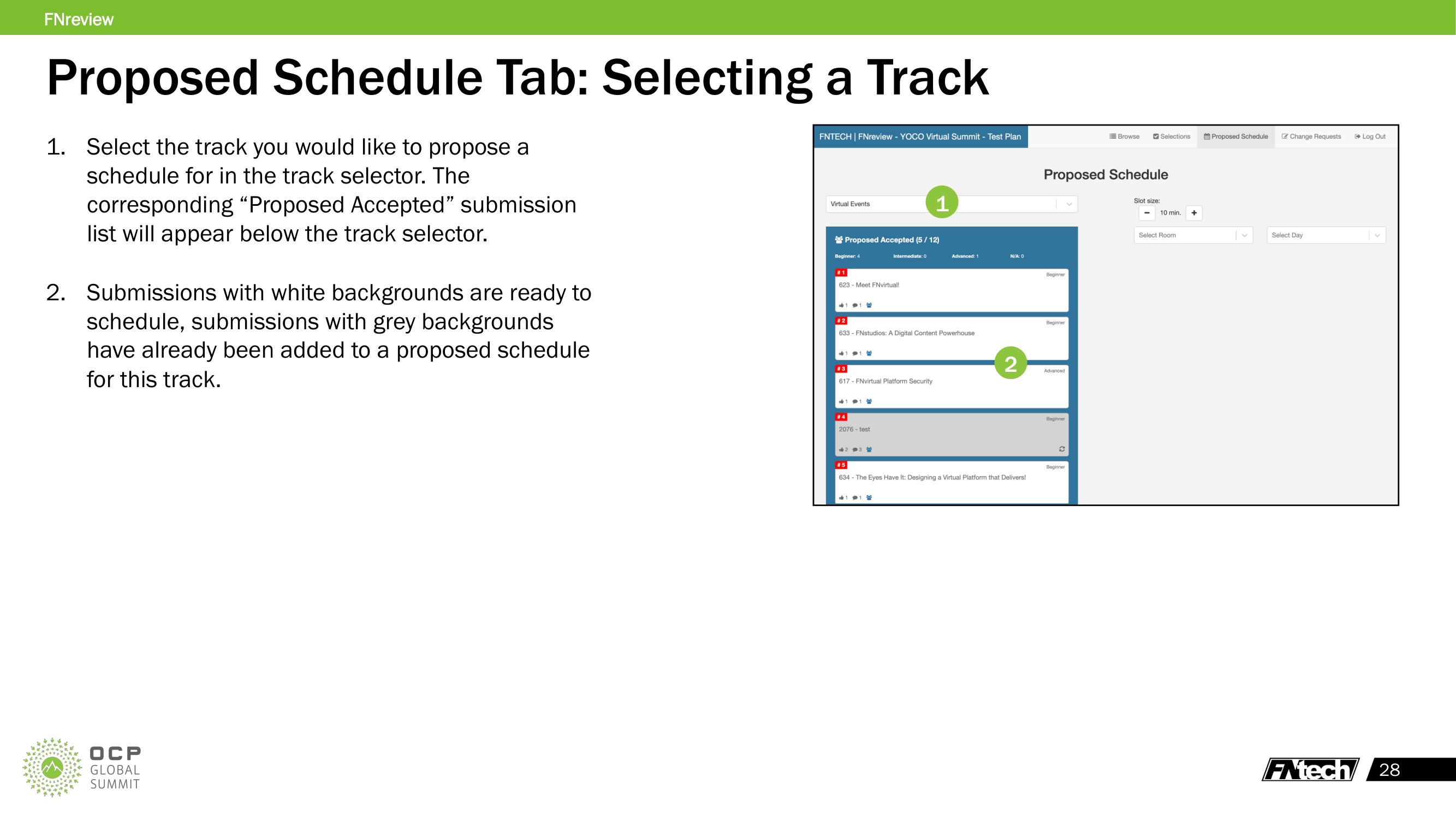
- Select the track from the track selector
- The Proposed Accepted list appears below
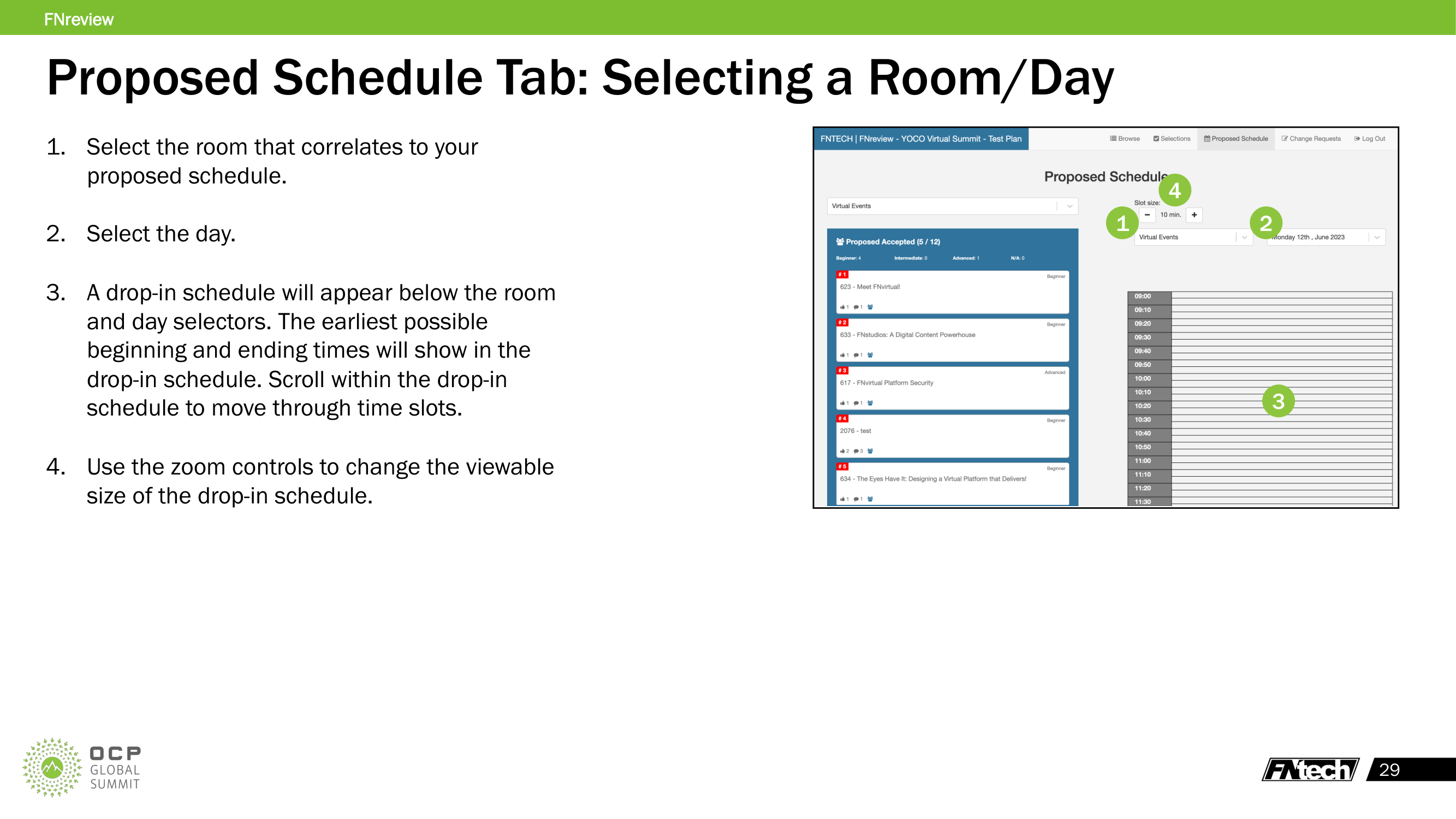
- Select the room that corresponds to your track
- Select the day to schedule
- The drop-in schedule grid appears with time slots
Scheduling Submissions
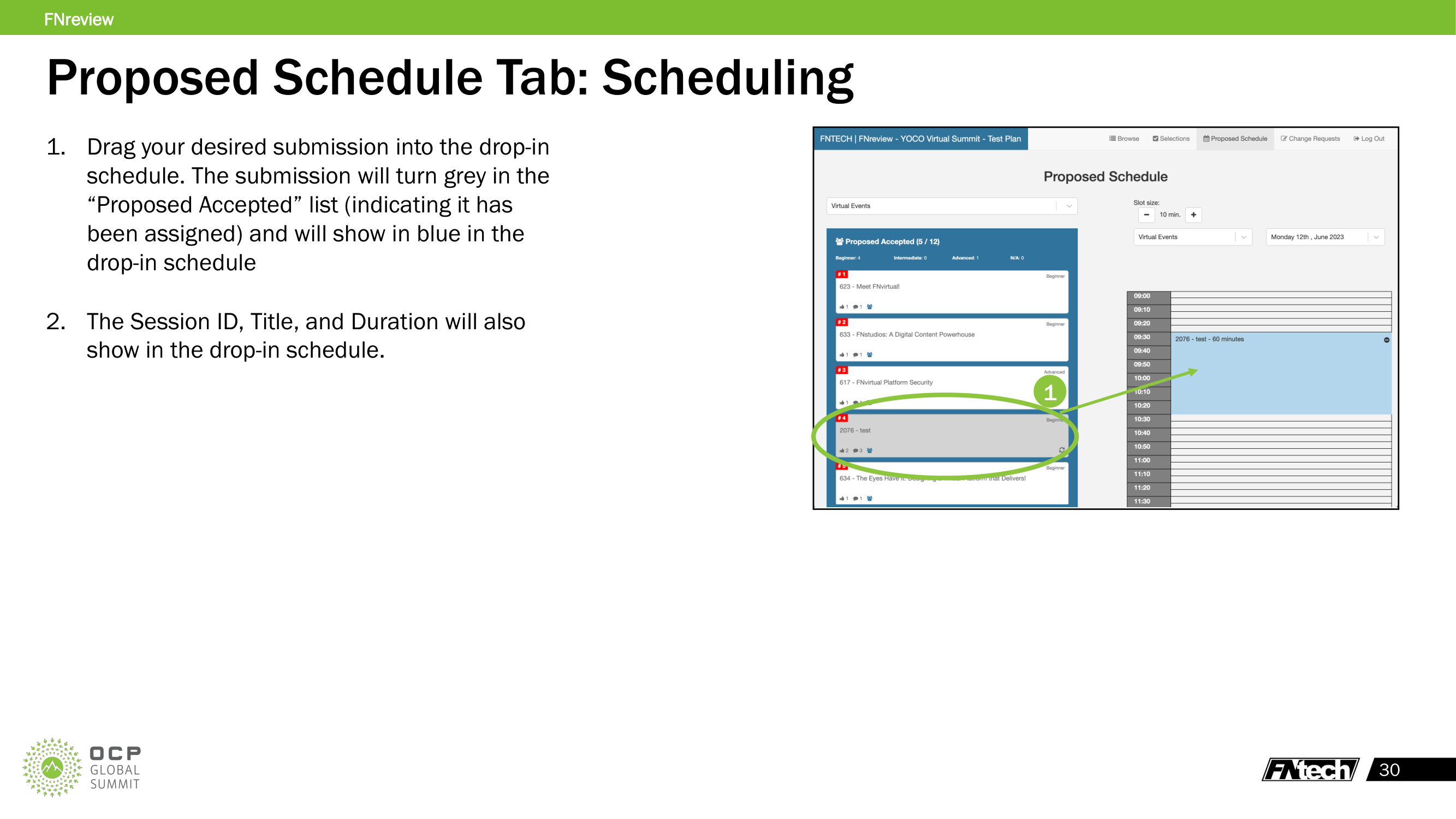
- Drag a submission from the Proposed Accepted list into the desired time slot on the schedule grid
- The submission turns grey in the Proposed Accepted list (indicating it's been scheduled)
- The submission appears in blue on the schedule grid, showing Session ID, Title, and Duration
- Continue dragging submissions until the proposed schedule is complete
Adjusting the Schedule
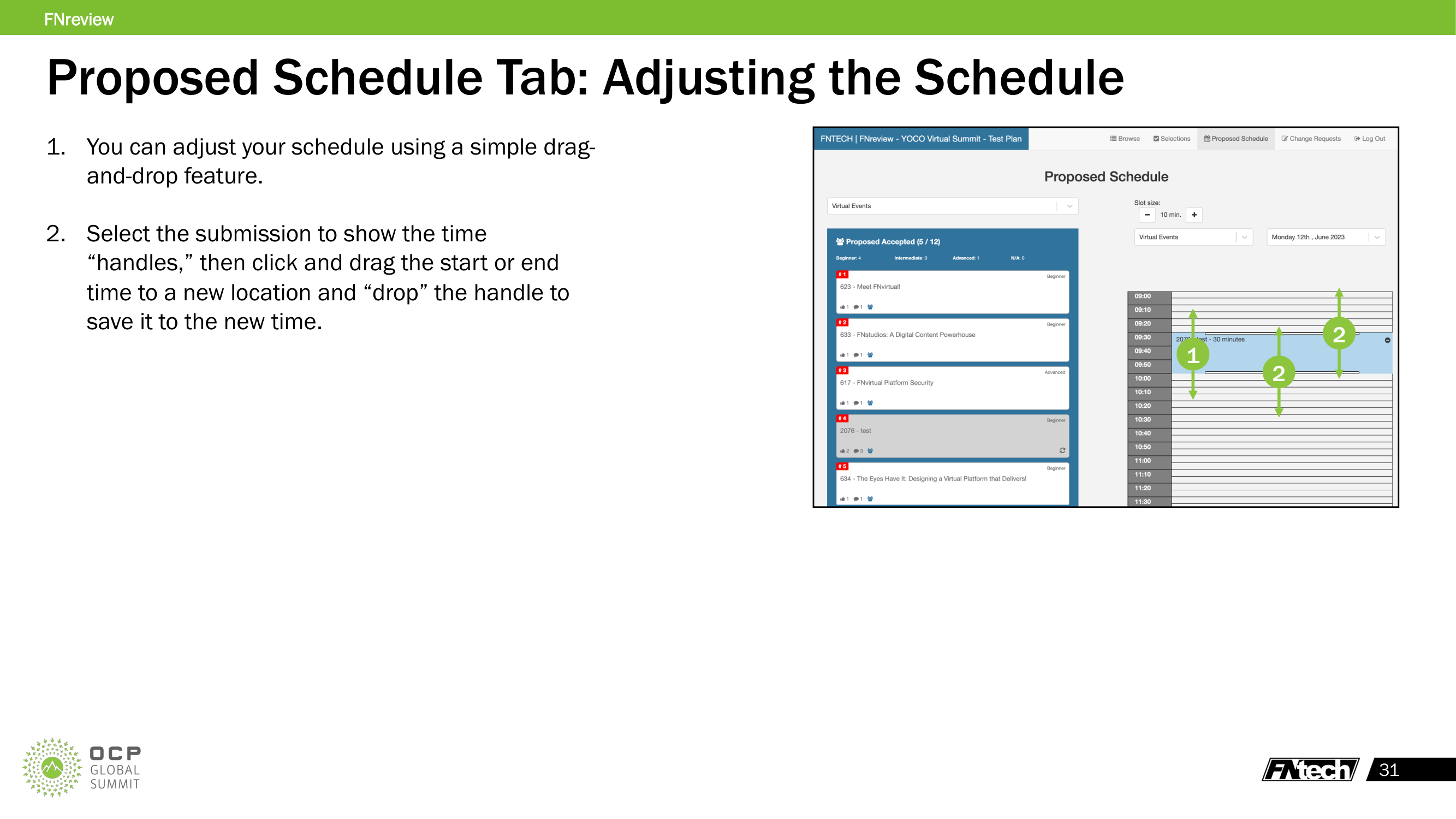
- Move: Drag a scheduled submission to a different time slot
- Resize: Click the submission to reveal time "handles," then drag the start or end handle to change the duration
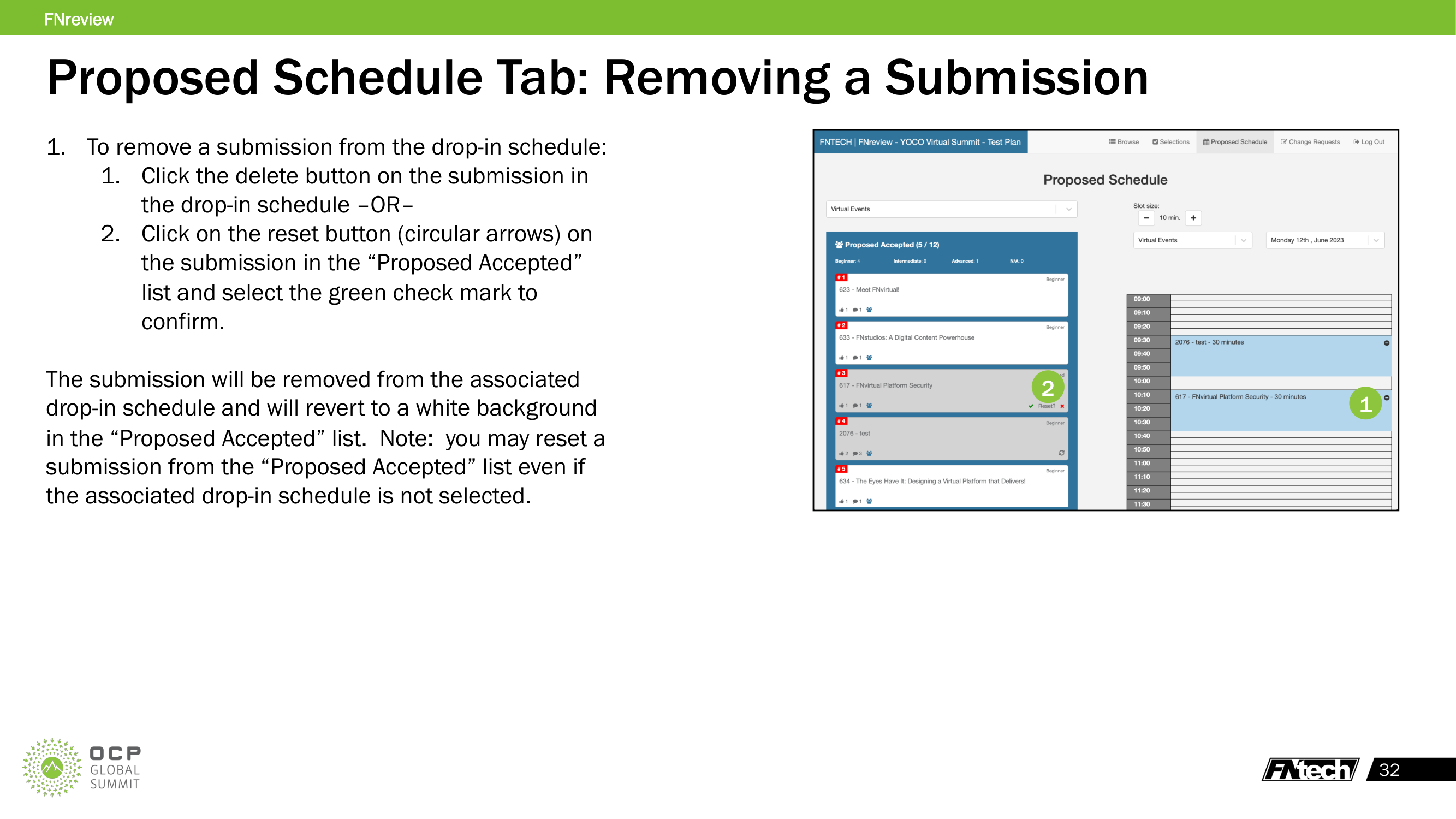
- Remove: Click the delete button on the scheduled submission, OR click the reset button (circular arrows) on the submission in the Proposed Accepted list, then confirm with the green check mark
Submission States
- White background in Proposed Accepted list = not yet scheduled (available)
- Grey background in Proposed Accepted list = already scheduled in a time slot
Minimum Transition Times
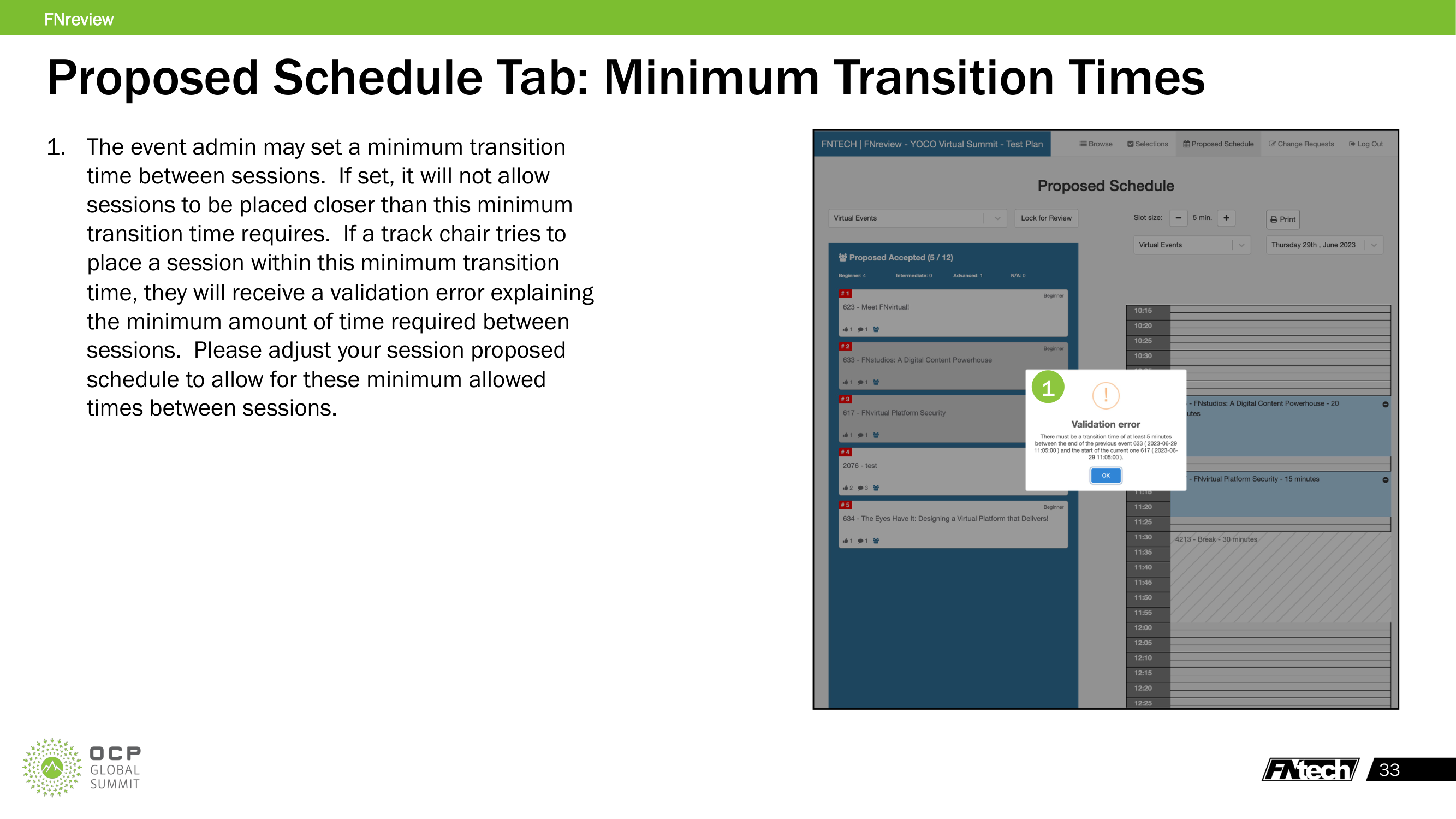
The event admin may set a minimum transition time between sessions. If you try to place sessions closer together than this minimum, a validation error will appear explaining the required gap. Adjust your schedule to allow the required transition time.
Black Out Times
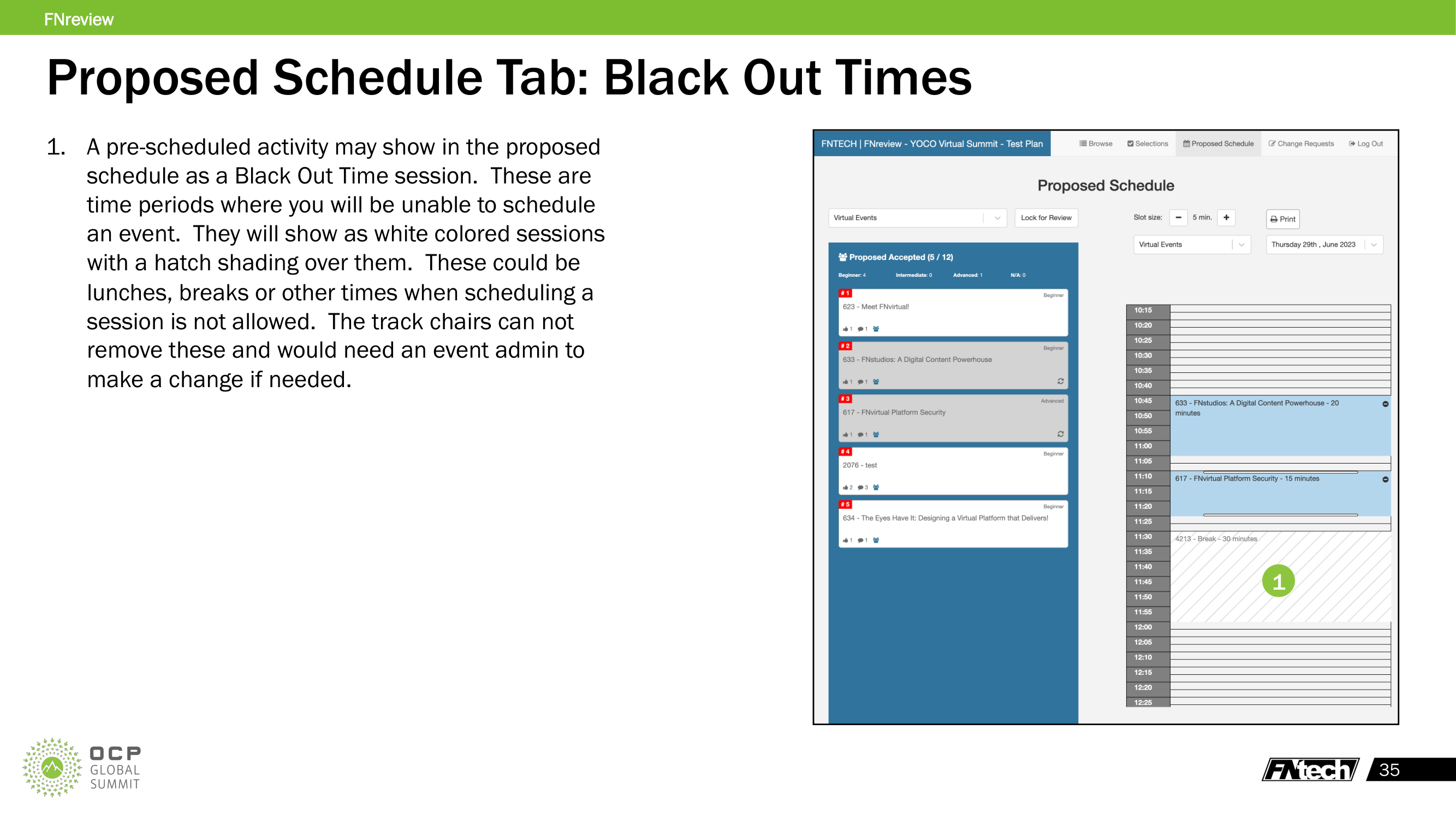
Pre-scheduled activities may appear as hatched/white sessions in the schedule grid. These represent blocked time periods (lunches, breaks, keynotes, etc.) where no session can be scheduled. Only an event admin can add or remove blackout times.
Print Proposed Schedule
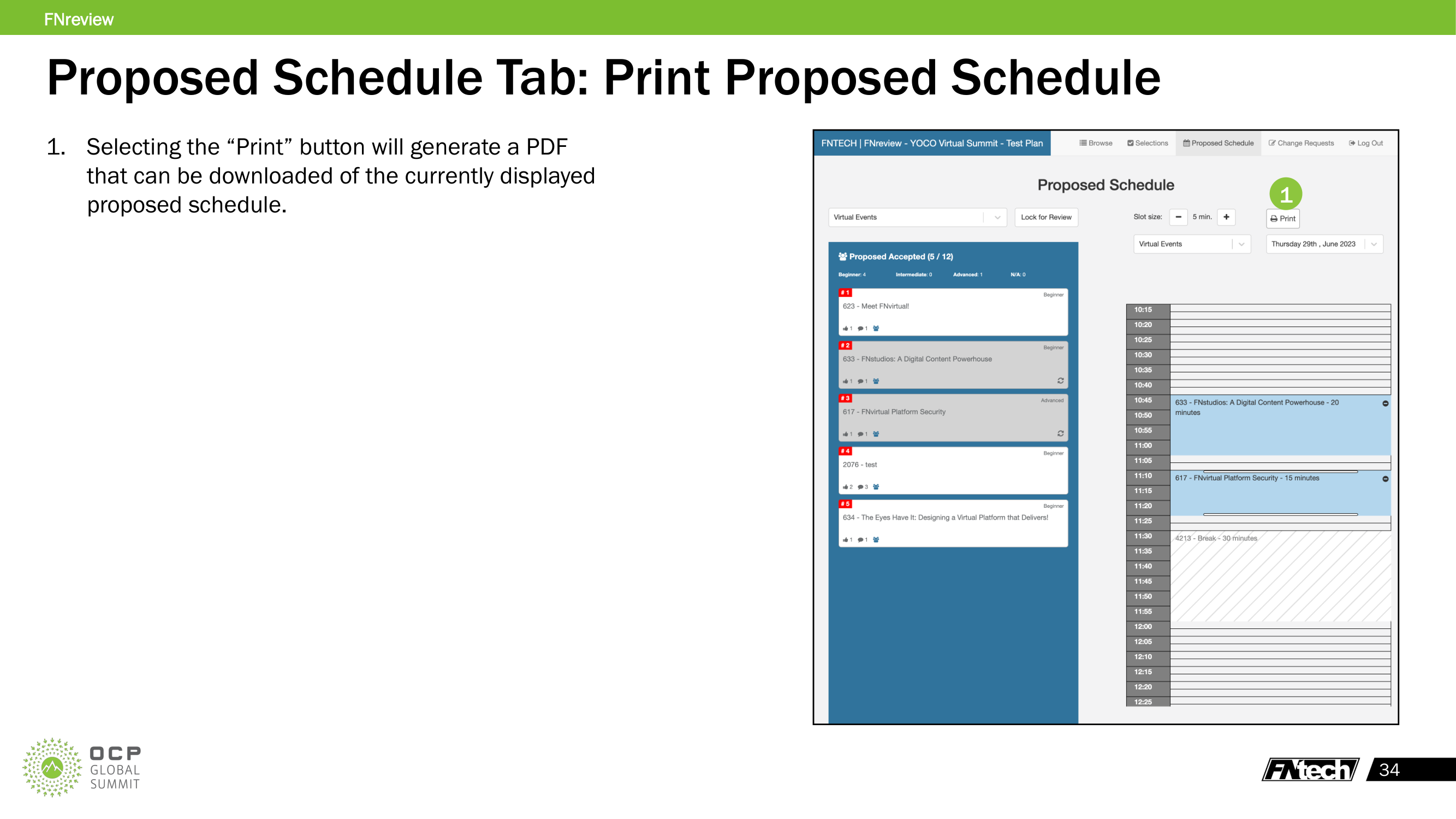
Click the "Print" button to generate a downloadable PDF of the currently displayed proposed schedule.
Lock for Review
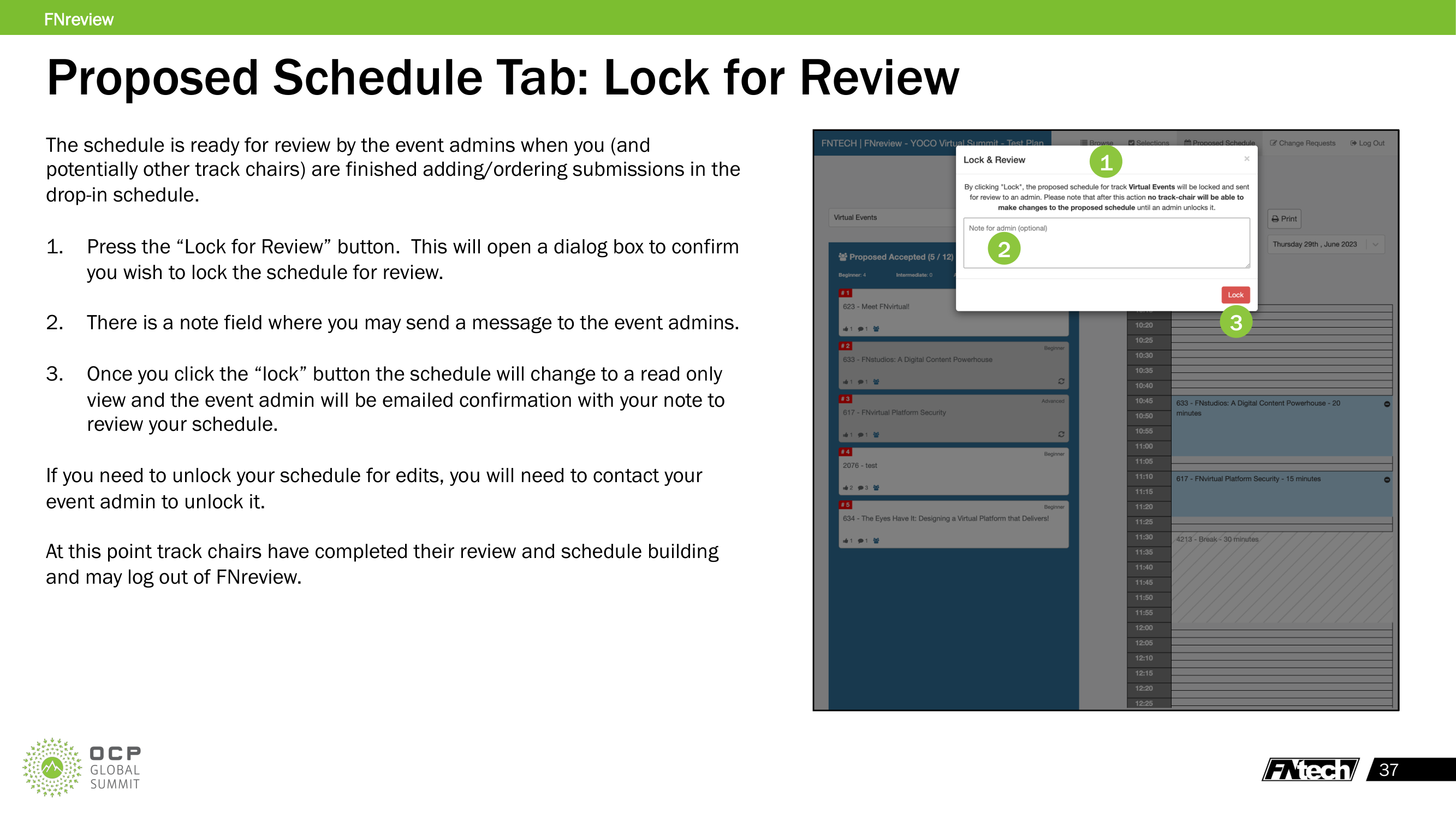
When the track chairs have completed their proposed schedule:
- Click "Lock for Review"
- A confirmation dialog appears with an optional note field for the event admin
- Click "Lock" to confirm
Once locked: - The schedule becomes read-only — no track chair can make further changes - The event admin receives an email notification with your note - To unlock for edits, contact the event admin
At this point, the track chairs' review and schedule-building work is complete.
Change Requests Tab
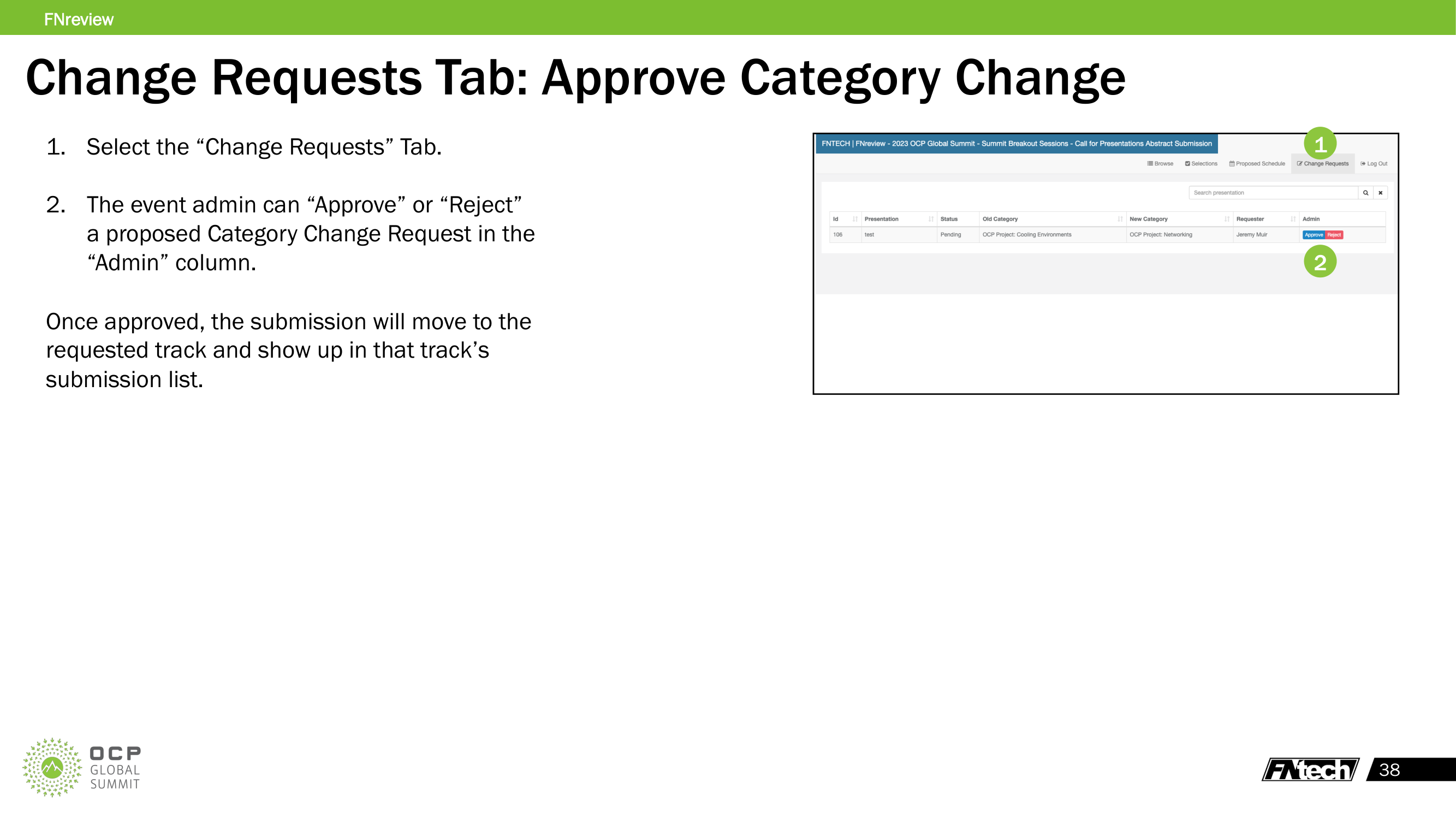
The Change Requests tab shows all category change requests submitted by track chairs.
For Event Admins
- Select the "Change Requests" tab
- Review each request showing: ID, Presentation name, Status, Old Category, New Category, Requester
- Click "Approve" or "Reject" in the Admin column
Once approved, the submission moves to the requested track and appears in that track's submission list.
Keyboard Shortcuts Reference
| Shortcut | Action |
|---|---|
| Prev presentation | Navigate to previous submission |
| Next presentation | Navigate to next submission |
| [Y] | Vote "Yes" |
| [I] | Vote "Interested" |
| [N] | Vote "No thanks" |
| [Q] | Clear vote |
Score Counters Reference
| Counter | Meaning |
|---|---|
| Community Vote | Aggregate community voting score (if enabled) |
| Selections | Number of track chairs who voted "Yes" |
| Interested | Number of track chairs who voted "Interested" |
| No Thanks | Number of track chairs who voted "No Thanks" |
| Score | Cumulative rubric score across all criteria and reviewers |
| Popularity Score | Combined popularity metric |
Related Platform Components
- [[track-chairs]] — the FNreview application repo
- [[call-for-presentations]] — the submission app (speaker-facing)
- [[summit-api]] — backend API providing submission data, scoring, and selection plan configuration
- [[auth-flows]] — OIDC authentication and track chair group authorization
- [[tribal-knowledge/selection-plan-midstream-required-question]] — gotcha about adding required questions mid-review
Converted from FNreview Instructions July 2023.pdf (OCP Global Summit) — 37 slides with screenshots extracted to assets/fnreview/